
Results at a glance
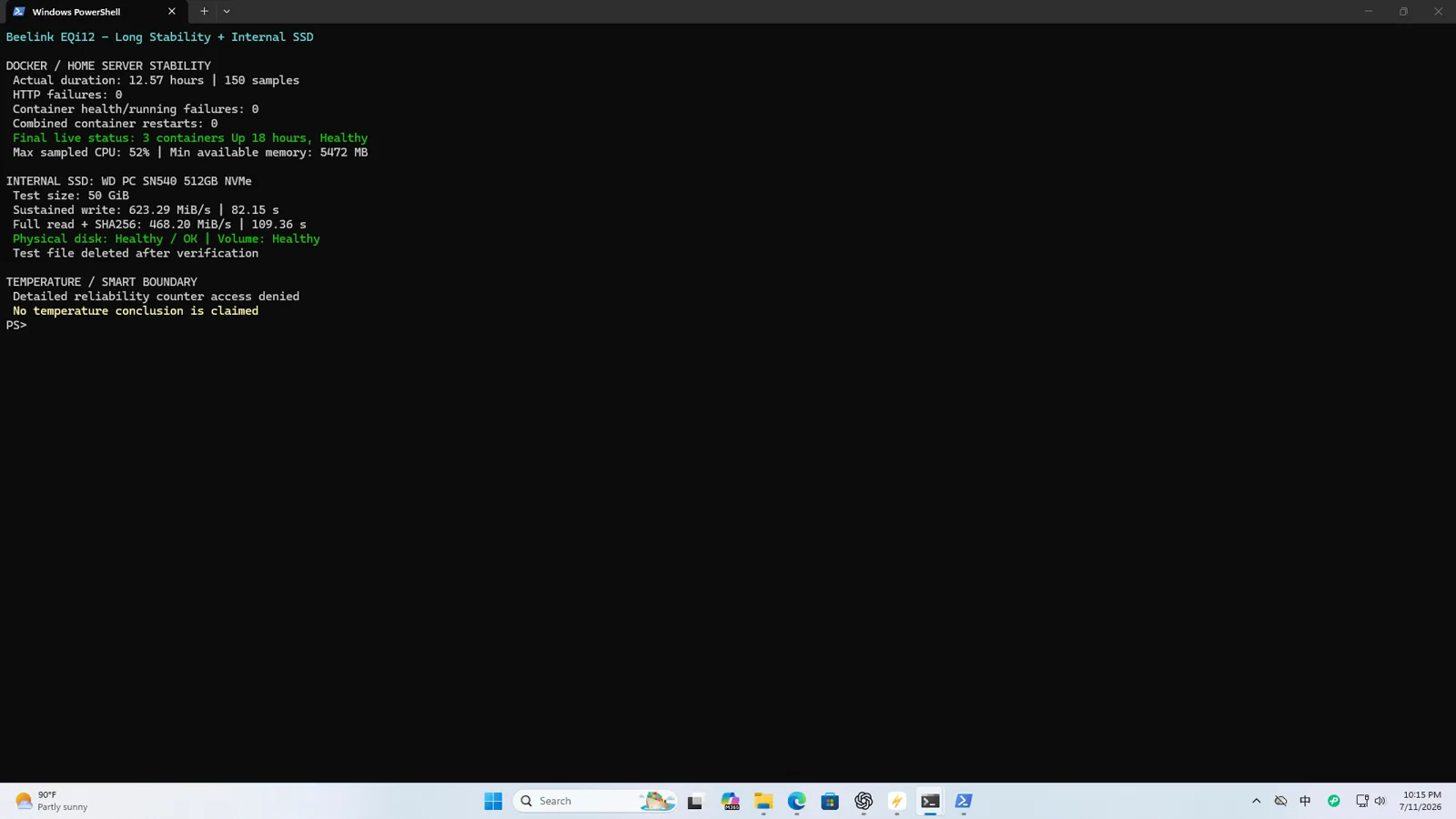
The EQi12’s internal 512GB WD PC SN540 was healthy and comfortably fast for a gigabit home server. The more important discovery came from the external SSD: three USB-A paths reached useful high-speed storage performance, while one rear path repeatedly stayed near 40MiB/s. All completed transfers preserved the expected hashes.
| Storage path | Write | Read | Integrity |
|---|---|---|---|
| Internal NVMe, sustained 50GiB | ~623.29MiB/s | ~468.2MiB/s | SHA-256 matched |
| Three faster USB-A paths | ~301MiB/s | ~432MiB/s | matched |
| One slow rear USB-A path, 3 retests | 39.35–39.75MiB/s | 40.95–43.12MiB/s | matched every round |
The slow path is a deployment issue because visually identical ports should not be assigned storage roles by appearance alone. The evidence supports a link-speed or compatibility anomaly; it does not prove that the connector is physically damaged. The unit’s USB-C port was also tested through a USB-C to USB-A adapter with the same SSD: reads reached 539.1 MiB/s while writes stayed near 39 MiB/s — a separate, asymmetric finding covered in the USB-C adapter write-penalty test.
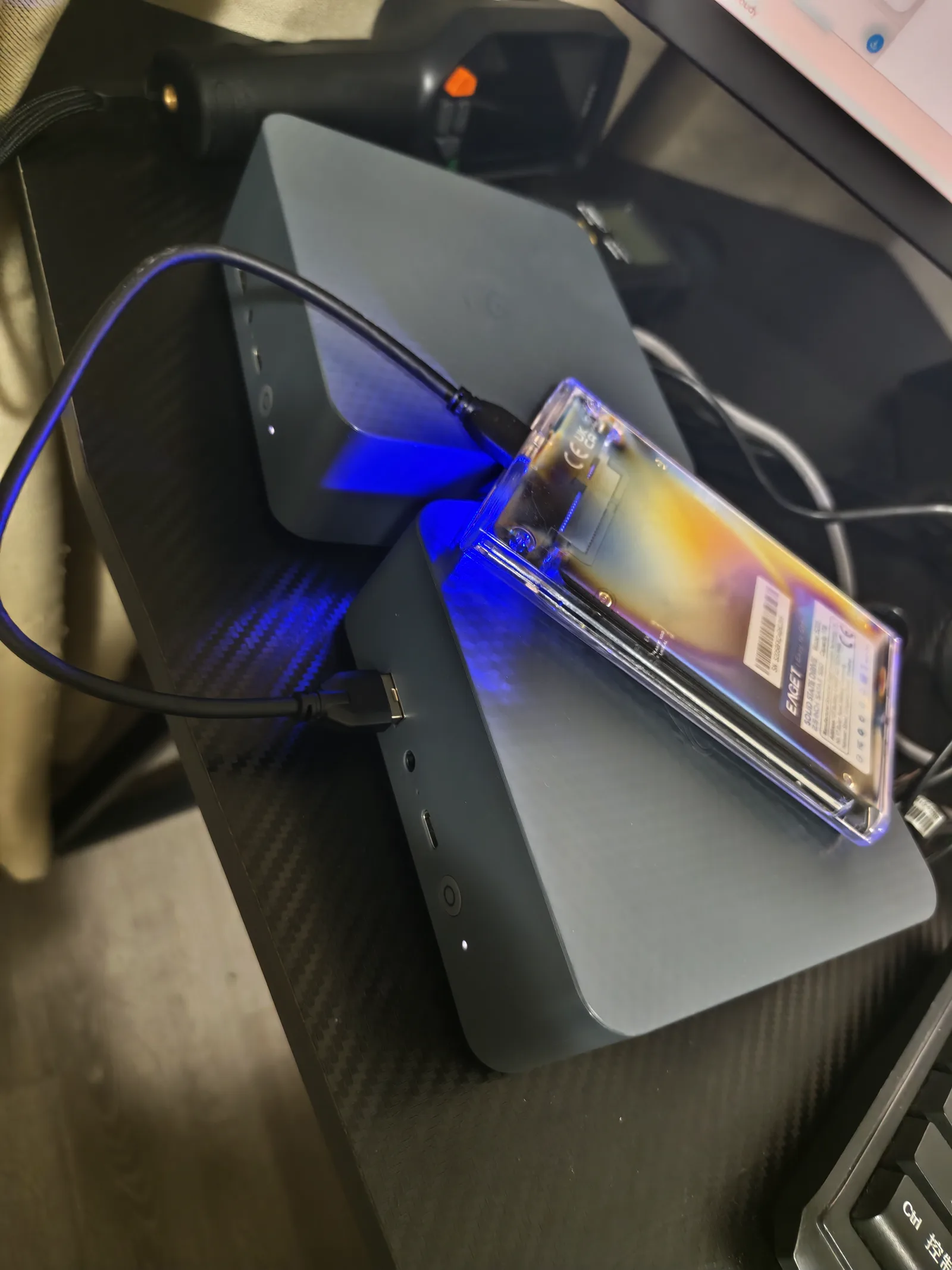
Internal SSD identity, firmware and SMART
Windows and Ubuntu tooling identified the internal drive as a 512GB WD PC SN540 NVMe SSD with firmware 33006000. SMART reported a healthy state, and the observed drive temperature was about 38°C during the recorded check. Public captures remove the serial number while the private inventory retains it.
Important SMART fields include the critical-warning state, temperature, power-on hours, percentage used, data units written, media and data-integrity errors and error-log entries. A green health label is convenient, but keeping the underlying values makes later comparison possible.
The drive is the boot and service disk in this Windows-first build. Before running a large write test, confirm there is enough free space, close unnecessary applications and keep a backup. A benchmark should never put the only copy of application data at risk.
Why the 50GiB workload matters
A short benchmark can fit inside multiple cache layers and produce an attractive burst number. The sustained test wrote a 50GiB data set, read it back and verified SHA-256. That is closer to a backup, media ingest or large archive operation than a tiny synthetic file.
The internal SSD wrote at about 623.29MiB/s and read at about 468.2MiB/s. Those figures are not presented as random IOPS and should not be mixed with Q1T1 or Q8T1 numbers. They answer a different question: can the storage handle a long file operation correctly and faster than the network path?
The answer is yes. A single gigabit SMB client measured about 103–107MiB/s, so the internal SSD retains substantial headroom. For this server, capacity, endurance, backups and application layout matter more than chasing a higher peak benchmark. Use the RAID & ZFS capacity calculator when planning a larger pool, and the media storage calculator to size the library separately from the boot drive.
CrystalDiskMark is supporting evidence, not the conclusion
The retained CrystalDiskMark capture used version 8.0.5, three passes and a 1GiB test size. It is useful for comparison with other reviews and for spotting an obviously misconfigured NVMe path. It does not replace the 50GiB transfer and hash test.
A good storage article should keep the two result types separate:
- CrystalDiskMark describes synthetic sequential and random access under its selected profile.
- The sustained file test describes long transfer behavior and verifies the resulting data.
- SMART describes health and error counters.
- Application recovery proves that services can read their data after restart or restore.
Using all four prevents one large benchmark number from carrying claims it cannot support.
How all four USB-A ports were tested
The external SSD and cable were connected to each physical USB-A position in turn. The test recorded the port, performed the transfer, read data back and checked the hash. The same basic workload was used so one port could be compared with another.
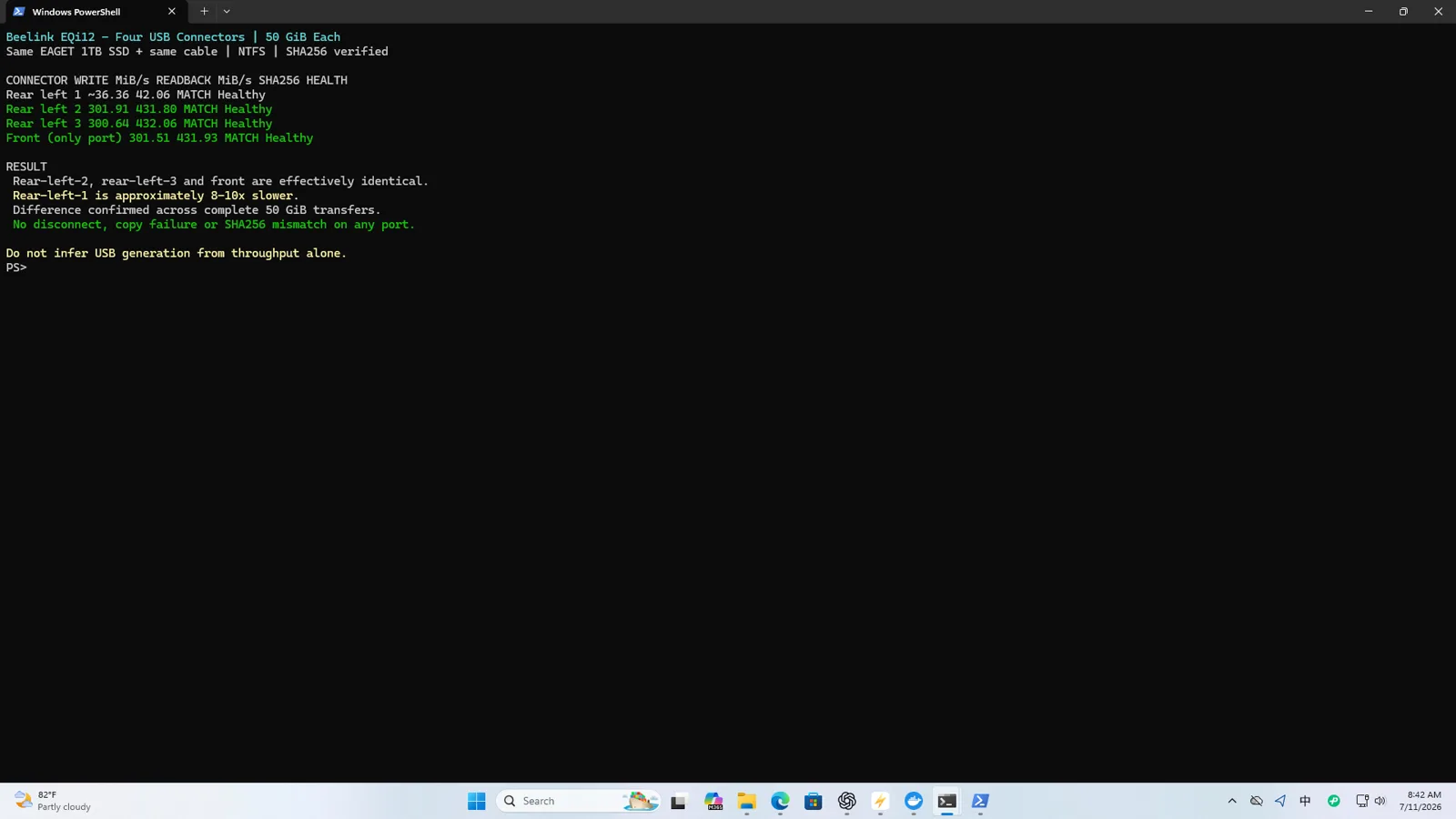
Three paths produced about 301MiB/s writing and 432MiB/s reading in the consolidated 50GiB result. This is appropriate for the tested enclosure and is fast enough for local backup or a media library.
The slow rear path was then retested three times with a 4GiB workload. Write speed remained within 39.35–39.75MiB/s and read speed within 40.95–43.12MiB/s. The tight range shows that this was not one momentary background task. Matching hashes show that the path was slow but did not corrupt the tested data.
Diagnosing a port that stops near 40MiB/s
A ceiling near 40MiB/s often points to a USB 2.0-class link. The correct response is to isolate the path rather than immediately declare the port broken.
- Keep the same SSD, enclosure, cable and test file.
- Move only the physical EQi12 port and rerun.
- Return to the suspected port and repeat at least three times.
- Inspect the negotiated USB topology and driver state.
- Try a known-good cable and another enclosure if available.
- Check for a hub, adapter or extension that changes the link.
- Verify the file hash after every important run.
If the slow behavior follows the enclosure, investigate its bridge chipset, firmware or cable. If it remains on one EQi12 port with several known-good devices, the PC-side path becomes the stronger suspect. In our tests the repeated port-specific result was strong enough to influence deployment, but not enough to name the hidden electrical cause.
The 40MB/s USB diagnostic provides a shorter troubleshooting path for readers who already see this symptom.
Why data verification changes the diagnosis
A benchmark application normally reports speed and completion, not whether the copied payload exactly matches the source. A hash comparison detects silent changes that a timing result would miss.
Every relevant slow-port retest matched. That rules out observed corruption in these rounds and supports using the path for a low-bandwidth device if necessary. It does not make the port suitable for a fast backup SSD: at about 40MiB/s, a large backup takes many times longer than on the verified faster paths.
For backups, also verify restoration. A good hash proves that one file arrived unchanged; it does not prove that a database dump, permissions or application configuration can be restored into a working service.
Thermal and sustained-operation context
The internal NVMe temperature was around 38°C during the recorded status check, and the wider photo archive contains thermal and system-monitoring scenes. We did not open the enclosure, so this report does not infer the heatsink design or internal airflow.
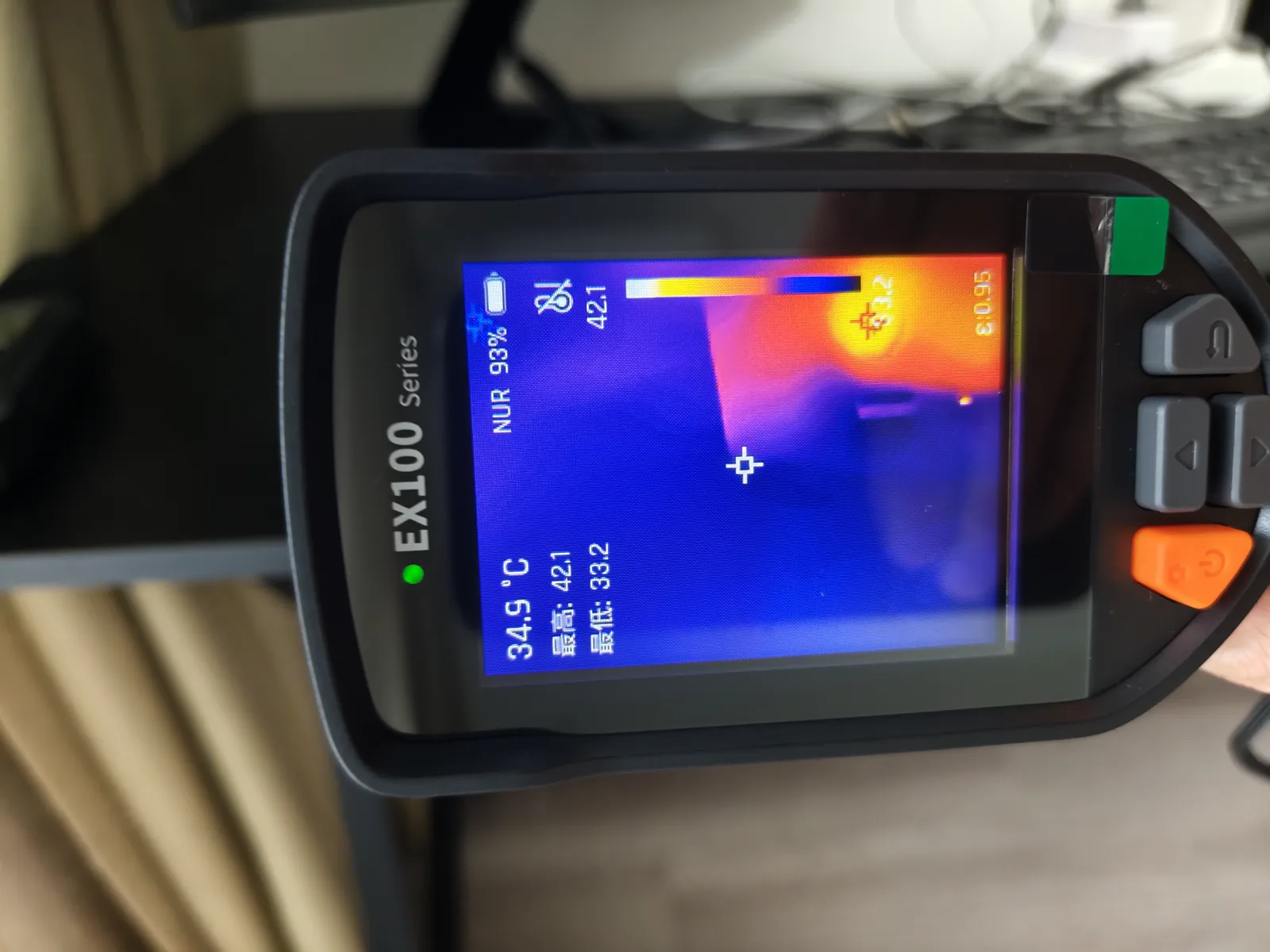
A server owner should watch NVMe temperature and SMART counters over time, especially when the drive holds Docker data, transcode files and SMB shares at once. If smartd ever emails a Critical Warning (0x02): Temperature line, the NVMe critical warning explainer walks through a real smartctl capture and separates a stuck alert from real heat. Avoid placing the mini PC or external SSD where cables block ventilation.
Assigning storage roles
A practical EQi12 layout is:
- internal NVMe for Windows, applications and active container data;
- a verified fast USB-A path for local backup or a large media SSD;
- the repeatably slow path for a keyboard receiver, UPS interface or another low-bandwidth device;
- a separate network or off-site copy for irreplaceable data.
Label the chosen high-speed physical port. If the server is moved or cables are rearranged, rerun a short speed and hash check before the next large backup. A visual match between connectors does not guarantee the same negotiated path.
Do not place Jellyfin’s temporary transcode directory on the slow USB path. The internal SSD has enough performance, and temporary data should not compete with a scheduled external backup on an already limited connection.
When planning external storage for backup or a media library, the ZFS & RAID storage planning guide covers RAIDZ1, RAIDZ2 and mirror layouts with real capacity numbers and rebuild-risk analysis.
Estimating backup time
At 300MiB/s, a continuous 500GiB transfer has an ideal lower bound of roughly 28 minutes. At 40MiB/s, the same amount takes about 3.6 hours before filesystem and small-file overhead. This is why the port anomaly matters even though the hashes passed.
Over the EQi12’s gigabit Ethernet, the same backup may be limited around 103–107MiB/s. Use the slower of the network and storage paths when estimating a real job, then add margin for metadata, antivirus and verification.
What to save as evidence
For each storage path, retain:
- a physical port photograph;
- SSD or enclosure model and firmware;
- cable description;
- negotiated USB topology or link-speed evidence;
- test size and command;
- elapsed time and calculated throughput;
- source and destination SHA-256;
- SMART before and after a demanding run;
- a note about background services.
This record makes a later regression diagnosable. Without it, a new cable, driver or enclosure can change the result while the article still appears to describe the current setup.
Bottom line
The WD PC SN540 was healthy and easily fast enough for the EQi12’s gigabit-server role. Three USB-A paths delivered useful external-SSD performance. One rear path repeatedly operated near 40MiB/s but preserved data in every recorded round. The correct deployment response is not to ignore it or call it corrupt: identify and label the fast port, reserve the slow path for low-bandwidth devices, and keep hashes and restore tests in the backup workflow. When planning storage capacity for backups or media, use the RAID and ZFS capacity calculator to compare layouts before buying drives.
Continue with the SMART and NVMe report explainer, the network performance report, the Windows home-server build, or the focused USB 40MB/s fix.