
The checkbox is not proof
Selecting Intel Quick Sync in Jellyfin only requests a hardware path. The client may Direct Play without transcoding, the decoder may use QSV while a filter falls back to software, or the encoder may be unsupported. CPU usage alone cannot identify which stage is active.
The decisive evidence is the FFmpeg command and log for a known transcoding session. On the EQi12, verified logs included h264_qsv and vpp_qsv, and measured wall power during a confirmed QSV workload was approximately 13 W. Those observations are stronger than a dashboard icon.
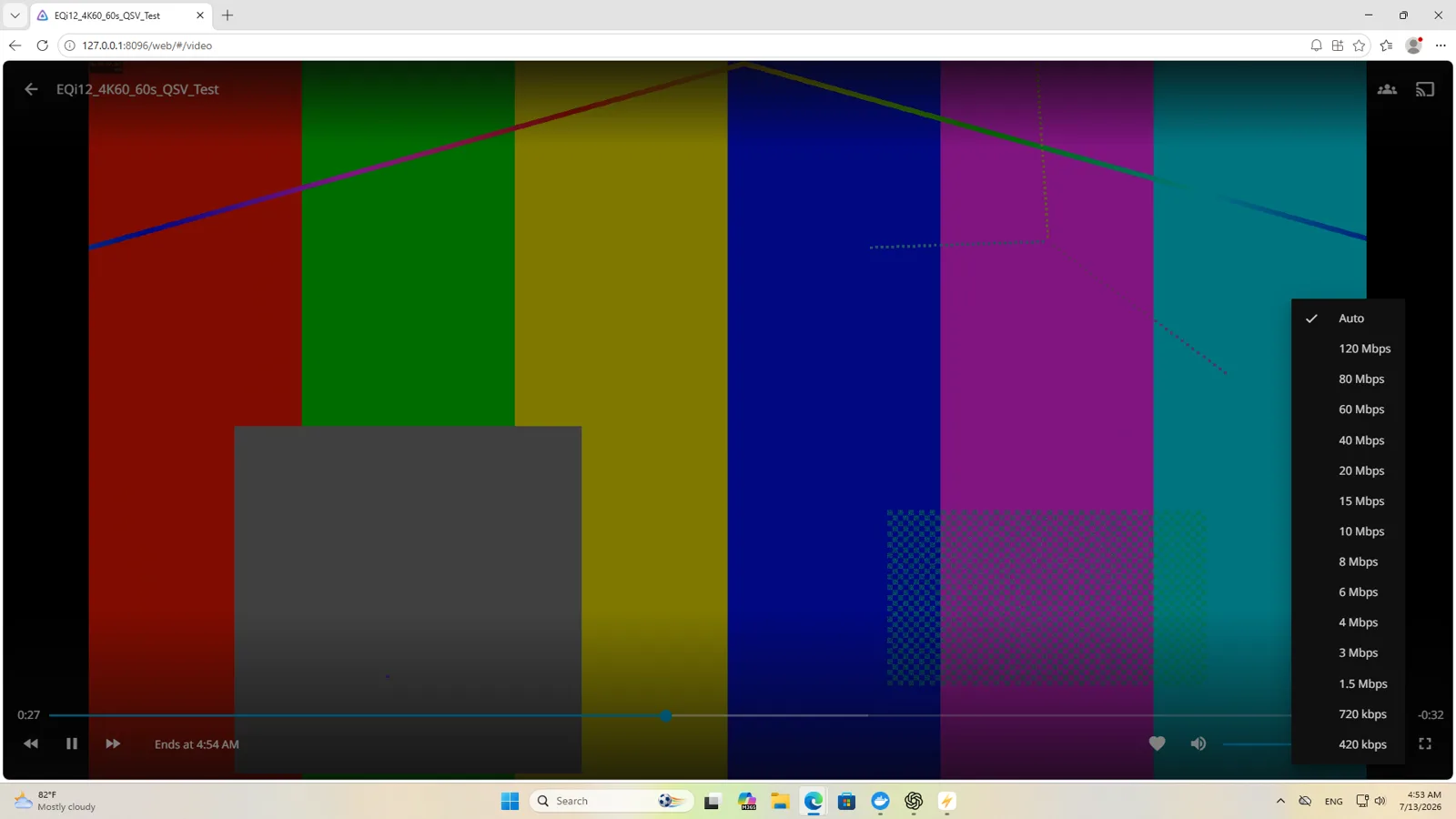
Force a controlled transcode
Choose a known source and make the client request a lower resolution or bitrate. Confirm that Jellyfin labels the session Transcoding, not Direct Play or Direct Stream. Record source codec, bit depth, resolution, frame rate, requested output and subtitle state.
Subtitles matter. Image-based subtitles or burn-in can introduce a filter stage that changes the hardware path. Repeat the test without subtitles before blaming QSV.
Read the pipeline stage by stage
A media pipeline can contain:
- Demux input container.
- Decode video.
- Scale, tone-map, deinterlace or burn subtitles.
- Encode output video.
- Encode or copy audio.
- Package and deliver segments.
Hardware decode does not guarantee hardware filters or hardware encode. Search the FFmpeg command and log for QSV device initialization and codec names such as h264_qsv, hevc_qsv and vpp_qsv. Also look for software codec names and filter transitions that may copy frames between GPU and system memory.
Verify driver and device access
On Windows, confirm the Intel graphics adapter is present without an error in Device Manager and that an appropriate Intel graphics driver is installed. Remote sessions and headless configurations can alter graphics behavior on some systems, so test in the actual deployment mode.
In a containerized Jellyfin deployment, the media device must be passed into the container and accessible to the Jellyfin process. A correct host driver does not automatically grant container access. The exact device path and permissions depend on the host operating system; do not paste a Linux /dev/dri recipe into a native Windows installation.
Separate codec support from workload capacity
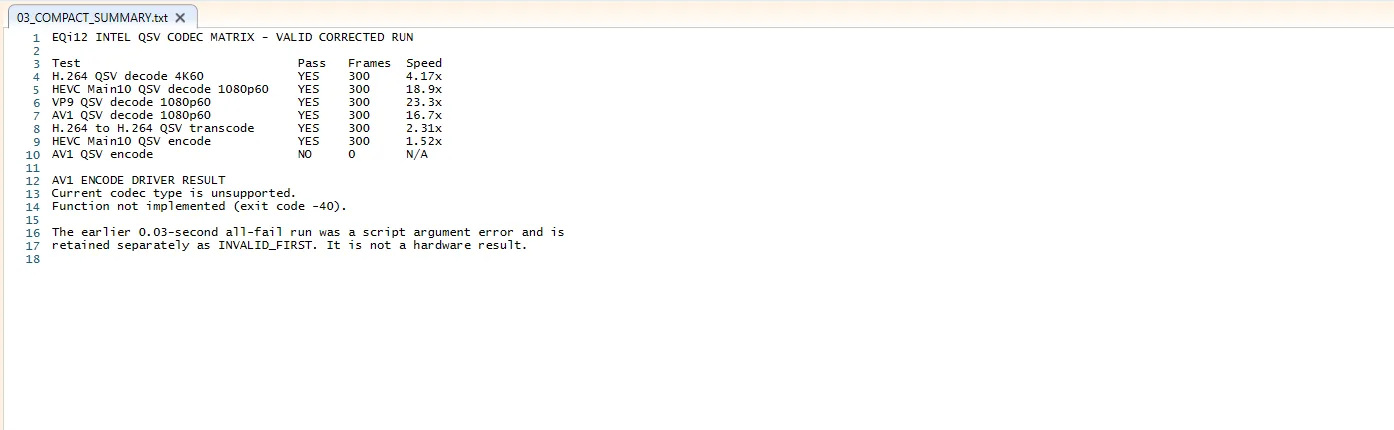
The i3-1215U test system decoded H.264 4K60 at 4.17x real time, HEVC Main10 1080p60 at 18.9x, VP9 at 23.3x and AV1 decode at 16.7x in the controlled codec work. H.264-to-H.264 QSV encode reached 2.31x and HEVC Main10 encode 1.52x. AV1 hardware encode was not supported in that path and exited with code -40.
These are workload-specific results, not a universal stream count. Bitrate, source complexity, tone mapping, subtitles, audio conversion and client requirements all change capacity.
Common failure patterns
| Symptom | Likely next check |
|---|---|
| Session says Direct Play | Force lower bitrate/resolution; no transcode is expected |
| QSV init fails immediately | Intel driver, device access, selected accelerator |
| Decode is QSV but CPU remains high | Software filters, subtitle burn-in, audio transcode |
| One stream works, several fail | Capacity, memory bandwidth, thermal or session limits |
| AV1 source decodes but AV1 output fails | Encode capability is separate from decode |
| Browser stalls while server is fast | Client, network and segment delivery path |
Verification standard
A verified result should include the Jellyfin session state, the complete FFmpeg command/log, codec and filter names, playback behavior, server CPU/GPU observations and—if available—wall power. Run at least one known-good codec and one boundary case.
Do not publish “QSV works” based only on enabling the setting. Publish the exact path that worked and the path that did not.
Follow the complete Jellyfin setup guide for installation and configuration, the Windows Jellyfin Intel QSV setup guide for detailed QSV verification, review the complete EQi12 Jellyfin test, see the i3-1215U codec matrix, and use the Jellyfin QSV capacity calculator to estimate how many concurrent streams your hardware should sustain before you test.
Platform references
Use these references to establish expected platform capability. Use the session-specific FFmpeg log to establish what actually happened on your server.