
Start with the power state, not the checkbox
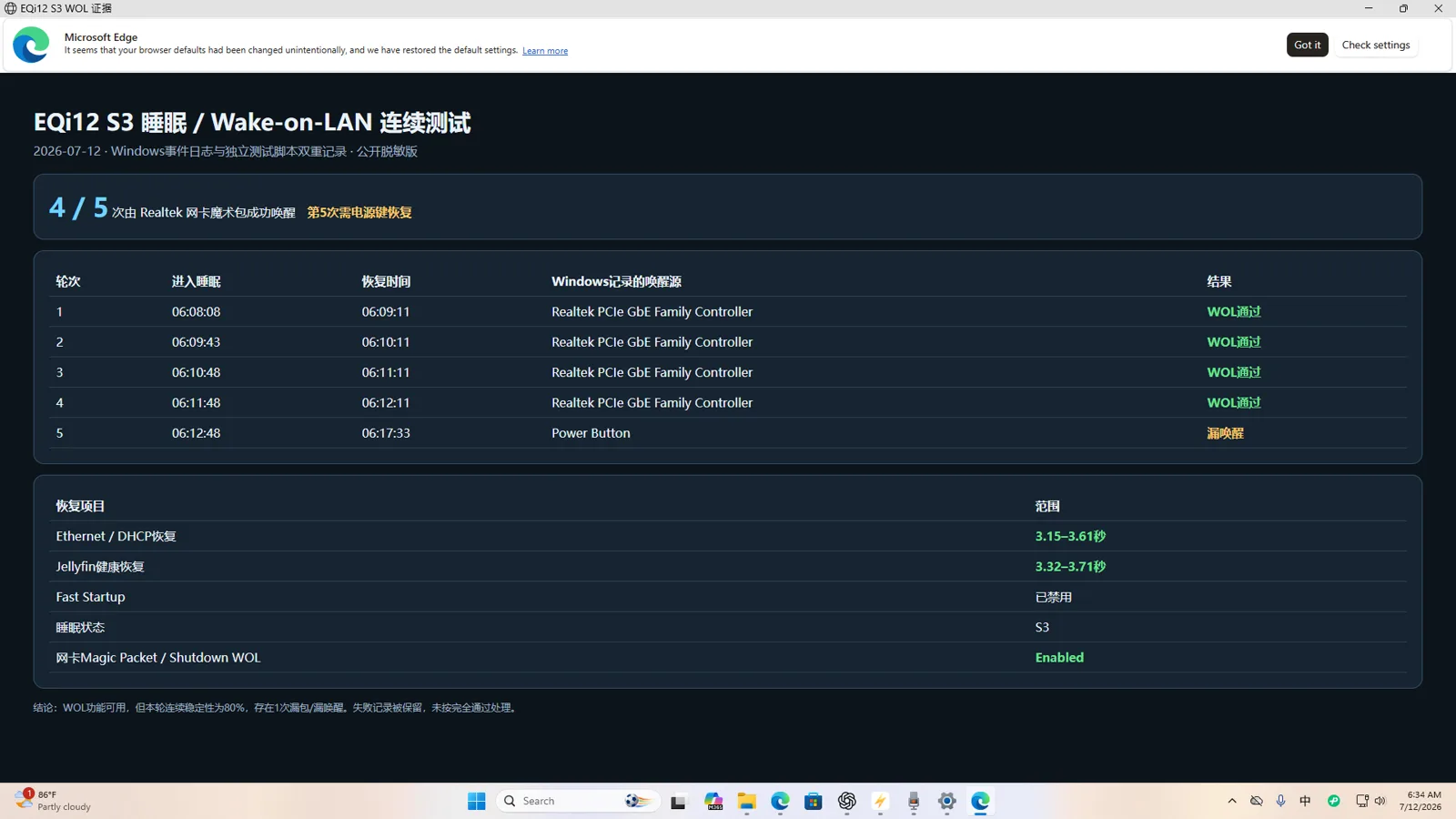
Wake-on-LAN is not one feature with one switch. A computer that wakes from a normal shutdown can still fail from sleep because S5 and S3 depend on different Windows, firmware and driver paths. On our EQi12, shutdown Wake-on-LAN passed 5/5, while sleep-state Wake-on-LAN passed 4/5. That result proves that the network controller can receive a magic packet after shutdown; it does not prove that every sleep transition is reliable.
Before changing anything, write down whether the failed test started from shutdown, sleep or hibernation. Also confirm which physical Ethernet jack is connected. The EQi12 exposes two similarly named Realtek controllers, so changing the properties of the unused adapter produces a perfectly configured but useless result.
Establish a clean baseline
Use a wired connection and assign the target machine a known IP address or DHCP reservation. From another device on the same LAN, record the target adapter MAC address privately. Do not publish the complete MAC address. Then perform five shutdown tests and five sleep tests separately.
For each attempt, record:
| Field | What to record |
|---|---|
| Starting state | S5 shutdown or S3 sleep |
| Link LEDs | On, off or blinking before the packet |
| Sender | Device and WOL application |
| Packet target | Broadcast or directed address |
| Result | Woke or failed |
| Time | Packet to login/network availability |
This table tells you whether the failure follows the sleep state, one Ethernet jack, one sender or one network path.
What the five-run protocol showed on our EQi12
We ran this protocol on a Beelink EQi12 (Realtek RTL8111H controllers, Windows 11, BIOS EQI12D405) before writing the recommendations above. The results are archived with raw logs in the EQi12 measurement data repository:
| Starting state | Result | Condition |
|---|---|---|
| S5 shutdown | 5/5 woke | Magic packet from a second wired LAN device |
| S3 sleep | 4/5 woke | The one failure required a physical power-button press |
| G3 (AC removed and restored) | 3/3 recovered | With firmware State After G3 set to power on |
Two details matter more than the totals. First, the S3 failure was intermittent: the same configuration woke four times in a row and then failed once, which is exactly why a single successful test proves nothing and the protocol demands five runs. Second, both Ethernet ports measured a healthy 891-941 Mbps in separate throughput tests, so link health and wake reliability are independent properties — a fast, stable link does not guarantee sleep-state wake.
If sleep wake fails every time, not intermittently
An every-time S3 failure points to a different cause than a 4-of-5 stutter:
- Run
powercfg /afirst. If Windows lists no S3 support, the machine uses Modern Standby and the S3 test plan does not apply. - Check that the firmware exposes a PME or wake-by-PCIe option and that it is enabled; some firmwares gate sleep-state wake independently of the S5 “Power On By PCI-E” switch.
- Confirm the Realtek driver exposes a Power Management tab. A generic driver can hide both wake arming and the magic-packet filter.
Configure the actual Realtek adapter
Open Device Manager → Network adapters, disconnect and reconnect the cable, and watch which adapter changes state. Open that Realtek controller, not simply the first identically named entry.
Under Advanced, enable Wake on Magic Packet. If present, enable Shutdown Wake-On-Lan. Leave WOL & Shutdown Link Speed at its default first; if S5 wake fails, test 10 Mbps First. Do not disable every energy-saving setting at once. Change one variable, repeat the five-run test, and preserve the result.
Under Power Management, enable:
- Allow this device to wake the computer.
- Only allow a magic packet to wake the computer.
- Initially leave “Allow the computer to turn off this device to save power” enabled.
If the Power Management tab is missing, install the appropriate Realtek driver rather than assuming Windows has no WOL support. A generic or restricted driver can expose fewer controls.
Check Windows power behavior
Disable Windows Fast Startup for an unambiguous shutdown test: Control Panel → Power Options → Choose what the power buttons do → Change settings that are currently unavailable → clear Turn on fast startup. Fast Startup can make “shutdown” behave like a hybrid state, complicating comparisons. To verify which state a shutdown actually produced before you compare cycles, use the S4/S5 verification workflow in Windows Fast Startup and Wake-on-LAN — it reads powercfg /lastwake and the Kernel-Power event log as a state discriminator.
Run powercfg /a in an elevated terminal. It reports which sleep states Windows actually supports. If S3 is not available, do not label a Modern Standby result as S3. You can also use powercfg /devicequery wake_armed to confirm that the Realtek adapter is armed, and powercfg /lastwake after a successful wake to see the source Windows recorded.
Check firmware without guessing
Look for a BIOS option named Wake on LAN, PME Event Wake Up, or Power On By PCI-E. Firmware names vary. Only enable a setting whose description clearly refers to PCIe or network wake. Do not alter unrelated PCIe root-port or ASPM controls merely because they contain “power”
After a BIOS change, save, boot Windows, and retest both states. Photograph the final page so the published result has a configuration record. For how PME, RTC alarms and PCIe wake options interact at S5, the ACPI S5 wake sources guide maps each firmware switch to the power state it actually affects.
Interpret the result
- S5 and S3 both pass 5/5: publish WOL as verified for those states and that exact configuration.
- S5 passes but S3 is intermittent: the NIC and packet path work; focus on sleep-state transition, driver power management and firmware behavior.
- Neither state works: verify the physical adapter, link LEDs, MAC target, subnet/broadcast behavior and BIOS PME support. If both states fail, step back and walk the complete Wake-on-LAN failure cause list before changing hardware.
- Only one Ethernet jack works: map the two controllers to their physical ports and publish the distinction.
Do not turn a 4/5 result into “WOL supported.” Report the denominator. Intermittency is the useful finding.
Completion standard
A fix is complete only when five consecutive attempts pass from the state you intend to use, the active adapter is documented, and the same sender/network path is used for all runs. For unattended service use, also time how long it takes after wake for the network and application health endpoint to become available.
If you want the same diagnostic order as a guided checklist, the interactive WOL troubleshooter tool walks through power state, adapter, driver and firmware branches one at a time.
Continue with the full Realtek WOL setup guide, the EQi12 Windows home-server recovery results, and the Realtek r8169 driver troubleshooting guide for link speed and disconnect issues.