
The dual-port problem
When Windows shows two nearly identical Realtek PCIe GbE Family Controllers, it is easy to configure one adapter and connect the cable to the other. A magic packet then appears to fail even though the selected adapter is behaving correctly.
Our EQi12 has two gigabit Realtek controllers. We mapped each Windows instance to a physical jack before testing. Shutdown wake succeeded five times out of five; S3 sleep wake succeeded four times out of five.
Tested outcome: S5 shutdown wake passed 5/5. S3 sleep wake passed 4/5. Configure and report the two states separately.
Record the active adapter
Connect one Ethernet cable and disconnect Wi-Fi. In PowerShell, list adapters and link state:
Get-NetAdapter | Format-Table Name, InterfaceDescription, Status, LinkSpeed, MacAddressTemporarily move the cable between ports and record which interface changes state. Keep the private MAC address in your local inventory; do not publish it unredacted.
The hardware ID confirms controller identity but does not prove negotiated speed or physical-port mapping.
Also capture the states Windows can actually use:
powercfg /a
powercfg /devicequery wake_armed
If powercfg /a does not list S3, do not label another power model as an S3 test. If the intended Realtek adapter is missing from wake_armed, fix the device or driver configuration before sending packets.
BIOS and firmware
Photograph the original BIOS pages before changing them. Look for terms such as Wake on LAN, PME Event Wake Up or Power On by PCI-E. Menu names vary, and our firmware did not present one obvious universal switch that alone guaranteed success.
Do not change unrelated PCIe power, C-state or fan settings while diagnosing WOL. One change per test keeps the result interpretable. For a power-state-by-power-state explanation of which firmware switch (PME, RTC alarm, PCIe wake) matters at S5 versus sleep, see the ACPI S5 wake sources guide.
Realtek Advanced settings
Open Device Manager, Network adapters, then the active Realtek controller. In Advanced, inspect:
- Wake on Magic Packet;
- Shutdown Wake-On-Lan;
- WOL & Shutdown Link Speed;
- Energy Efficient Ethernet.
Enable magic-packet wake and shutdown wake where the driver exposes them. Leave link speed and energy settings at their defaults for the first test. Change power-saving options only if the baseline fails, then retest.
Power Management tab
Enable “Allow this device to wake the computer” and “Only allow a magic packet to wake the computer.” Keep “Allow the computer to turn off this device to save power” at its default during the first run.
If the Power Management tab is missing, verify that you opened the actual physical Realtek adapter rather than a WAN Miniport, Bluetooth PAN or virtual adapter. Driver version and Windows power model can also change which controls appear.
Disable Fast Startup for shutdown testing
Windows Fast Startup can turn a shutdown into a hybrid state that changes WOL behavior. Open Control Panel, Power Options, Choose what the power buttons do, then Change settings that are currently unavailable. Clear “Turn on fast startup,” save and capture the final setting.
Restart once after changing this option so the new state is clean.
Test S5 shutdown
From another device on the same LAN:
- Record the target adapter MAC privately.
- Shut Windows down normally.
- Confirm the Ethernet port still shows the expected standby link behavior.
- Send a magic packet.
- Measure time to Windows, network and application readiness.
- Repeat five times.
Our S5 result was 5/5, with Jellyfin returning in about 42 seconds on average.
Test S3 separately
Sleep and shutdown are different power states. Repeat the same process from S3 sleep. Our result was 4/5; one cycle required the physical power button.
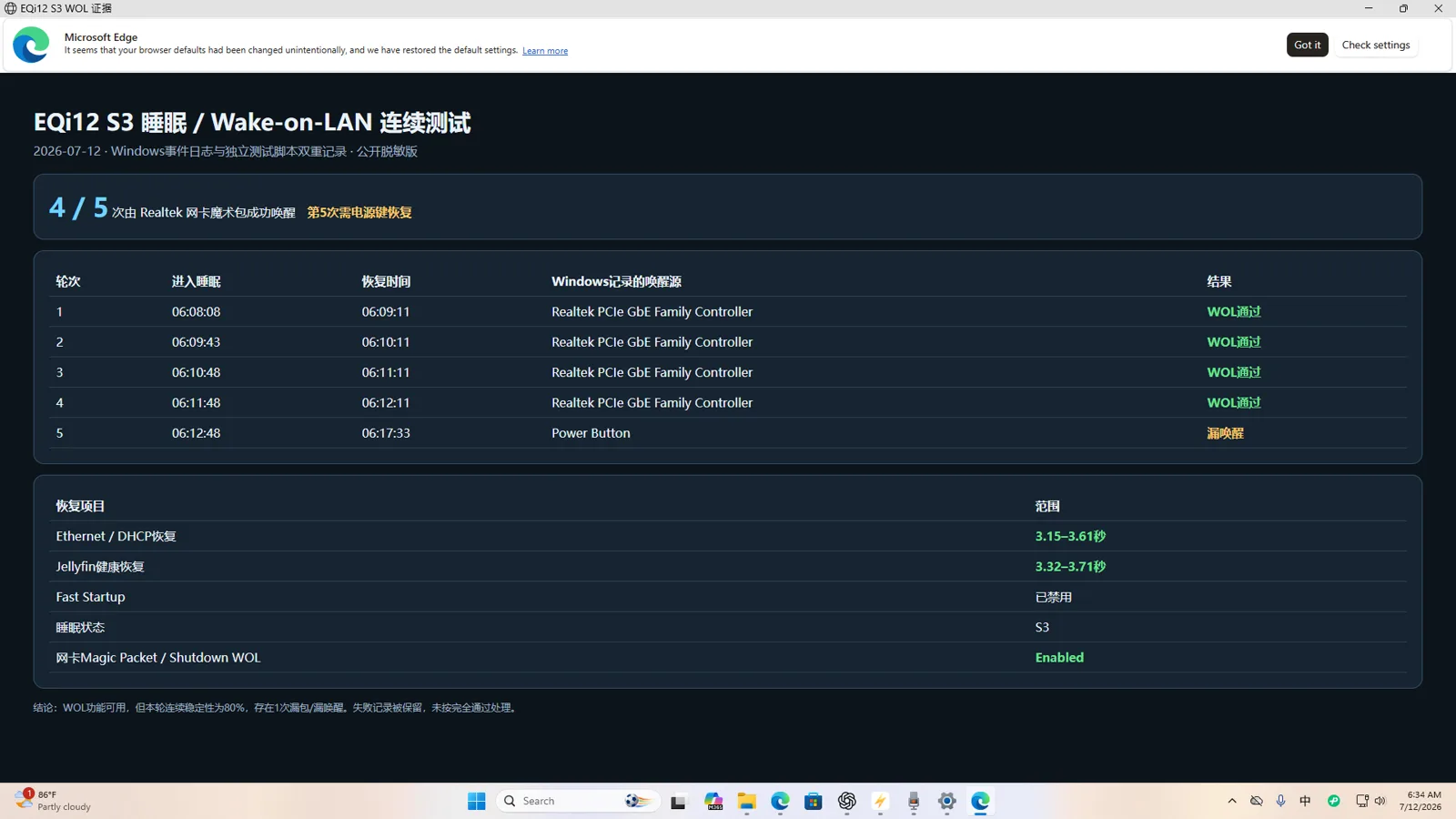
After a successful wake, run powercfg /lastwake and save the result. It can confirm what Windows recorded, although firmware-initiated events do not always produce a detailed source.
Diagnose the state that failed
| Symptom | First checks | Do not assume |
|---|---|---|
| Neither S5 nor S3 wakes | Active MAC, cable, switch link, BIOS/PME, magic-packet sender | The driver alone is at fault |
| S5 works, S3 fails | powercfg /a, Power Management tab, wake-armed list, repeat transitions | Shutdown success proves sleep reliability |
| S3 works, S5 fails | Fast Startup, Shutdown Wake-On-Lan, standby link after shutdown | Sleep and shutdown use the same path |
| Only one jack works | Physical-port mapping and the configured Realtek instance | Controller #2 always means the rear/right jack |
| Wake works locally only | Broadcast/VLAN/VPN/router path | Internet port forwarding is the safest answer |
Security and routing
WOL usually works best within the local network. Forwarding magic packets from the public internet creates security and routing complications. Prefer a VPN into the home network or a trusted router feature rather than exposing an unrestricted UDP port.
Completion standard
A single successful wake proves only that one attempt worked. Record at least five S5 and five S3 cycles if both states matter. Preserve failures and the adapter/port mapping.
For the measured recovery comparison, see the EQi12 Windows home-server report. If shutdown works but sleep fails, use the state-specific troubleshooting page. If the Realtek adapter shows link speed or disconnect issues, see the r8169 driver troubleshooting guide.
Keep the configuration supportable
Record the BIOS version, Windows build, Realtek driver version/date, active physical jack, private target MAC, sender application and network path. Re-run the five-cycle test after a BIOS, network-driver or Windows power-management change. A setting screenshot documents configuration; the repeated wake record documents behavior. On machines with two Ethernet jacks, the mapping and per-port verification process is covered in Dual-Ethernet Mini PC: Choose and Verify the Wake-on-LAN Port.
To run this sequence as a guided decision tree instead of a checklist, use the WOL troubleshooter tool.