
Why boot Linux on a Windows mini PC
The Beelink EQi12 ships with Windows 11 Home. Most homelab buyers will keep that or install Proxmox VE, but before committing to a full Linux install, a Live USB session answers three questions without touching the internal drive:
- Does UEFI recognize the USB boot device?
- Does the kernel detect the NVMe SSD, Ethernet and Wi-Fi?
- Is there any hardware that fails silently?
This page documents an Ubuntu 26.04 LTS Desktop Live boot on the stock EQi12 (Intel Core i3-1215U, 16 GB DDR4-3200, 512 GB WD PC SN540). Every command output shown below was captured from the actual terminal on the live desktop.
Building the ISO and USB
The test used Ubuntu 26.04 LTS Desktop AMD64, downloaded directly from releases.ubuntu.com (6.07 GiB).
ISO integrity was verified against the official SHA256:
487f87faaf547ea30e0aba4d5b53346292571256b25333a978db1692bcee9dd2Hash matched. The USB was written with Rufus 4.15 Portable (Akeo Consulting, signature verified valid) targeting a 58.6 GiB SCSI USB disk. Final volume label: UBUNTU 26_0, file system FAT32. Key files confirmed present after write: EFI/BOOT/BOOTX64.EFI, boot/grub/grub.cfg, casper/vmlinuz, casper/initrd and casper/minimal.squashfs.
Step 1 — UEFI boot menu selection
With the USB inserted and the EQi12 powered on, press F7 (or hold Del during POST) to open the boot device menu. The EFI firmware correctly lists the USB as SCSI DISK 1.00:
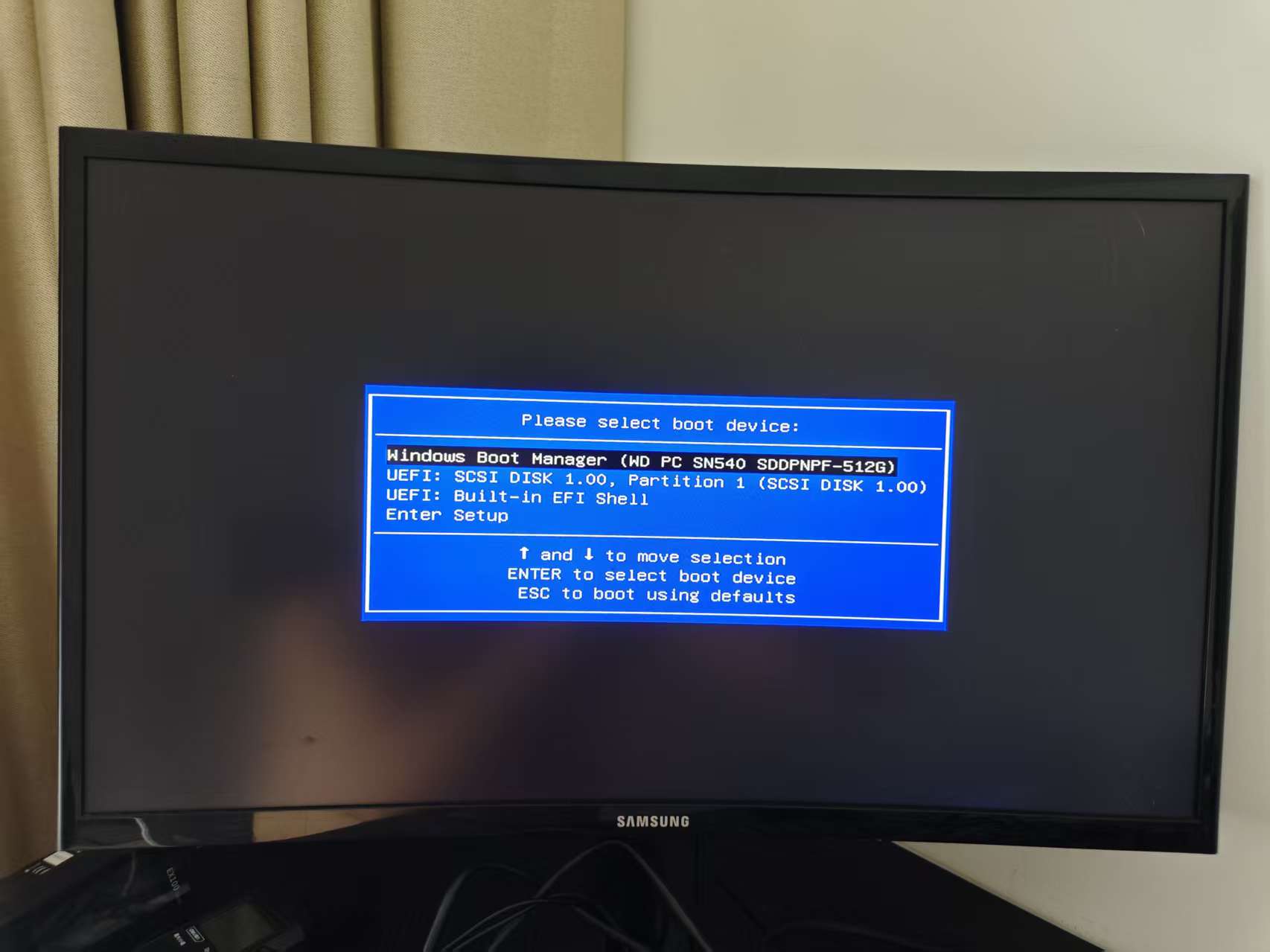
Select the SCSI DISK entry and press Enter. GRUB loads from the USB and hands off to the Ubuntu kernel.
Step 2 — Installer startup and network detection
Ubuntu’s installer starts in graphical mode. On first launch it presents the language selection, then immediately checks for network connectivity. The EQi12’s wired Ethernet port was auto-detected without additional drivers:
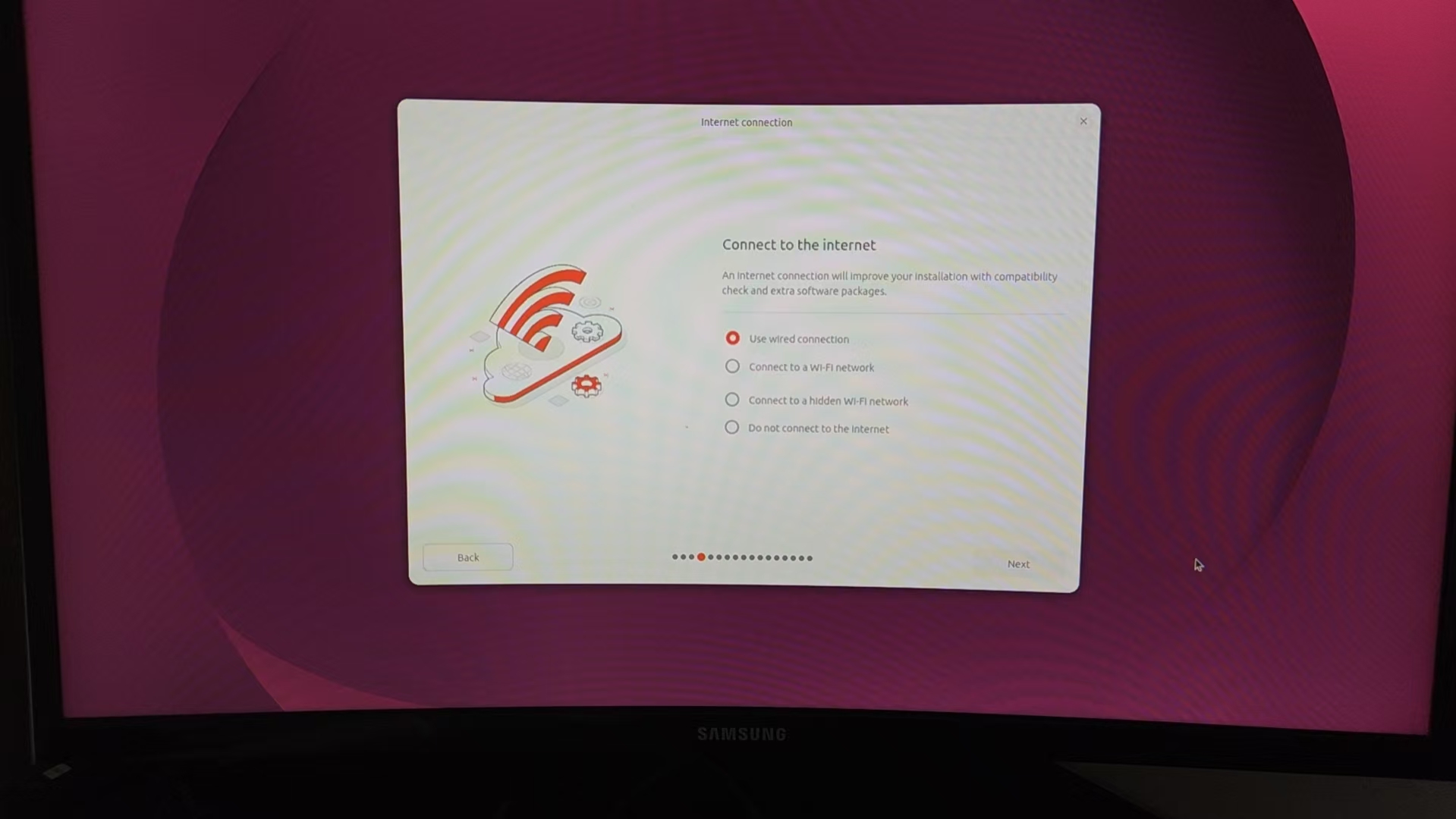
This confirms the network controller has a kernel driver included in the 26.04 LTS live image. For a full Proxmox or server install, this means the machine can reach package repositories and complete networked installs without extra firmware steps.
Step 3 — Live desktop loads successfully
After passing through accessibility defaults, the GNOME-based live desktop appears. This is a full graphical session running entirely from RAM and USB — the internal SSD is not mounted or modified:
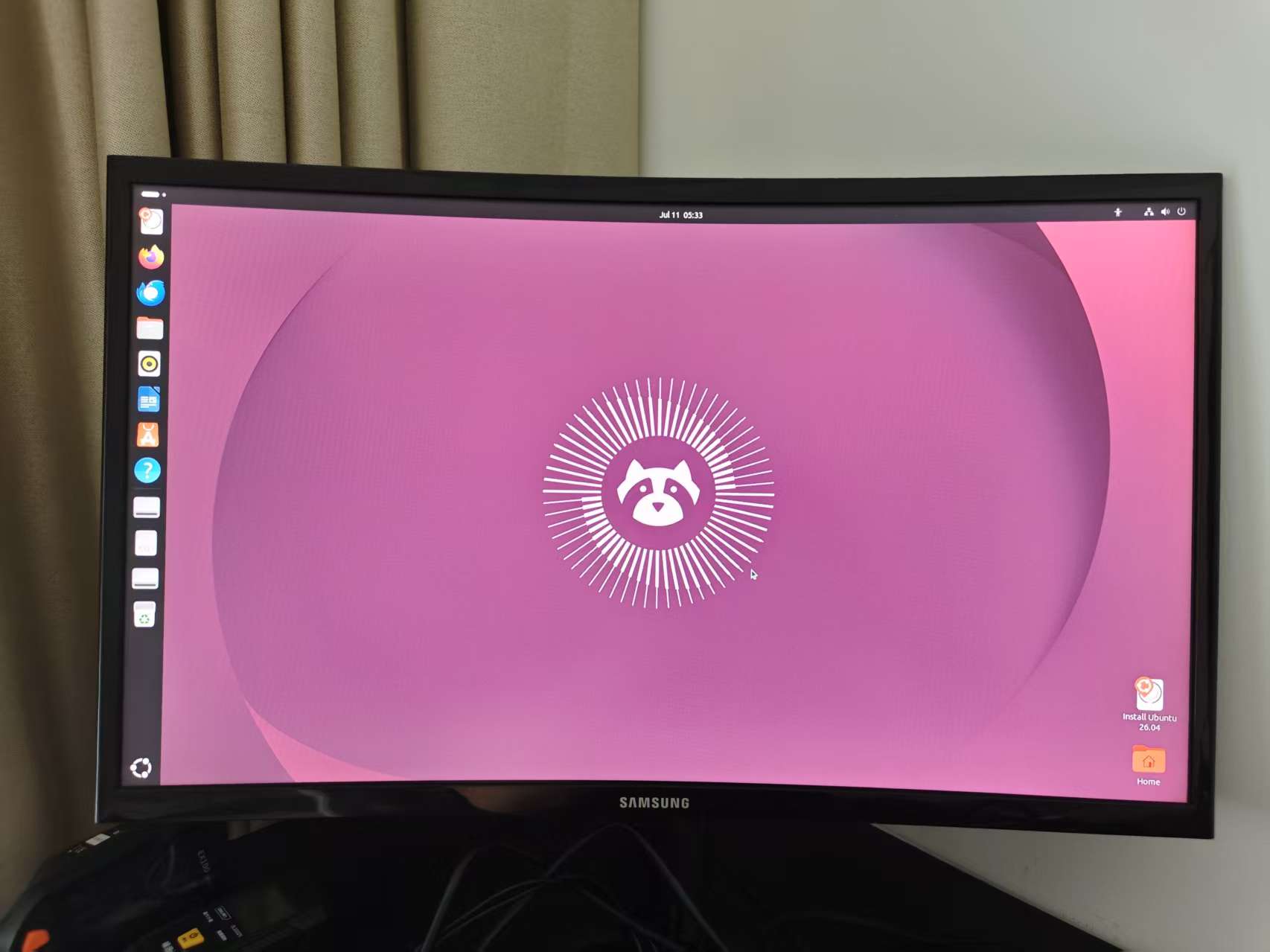
From here, opening a terminal (Ctrl+Alt+T) allows direct hardware inspection commands.
Step 4 — Hardware identification via lspci and lsblk
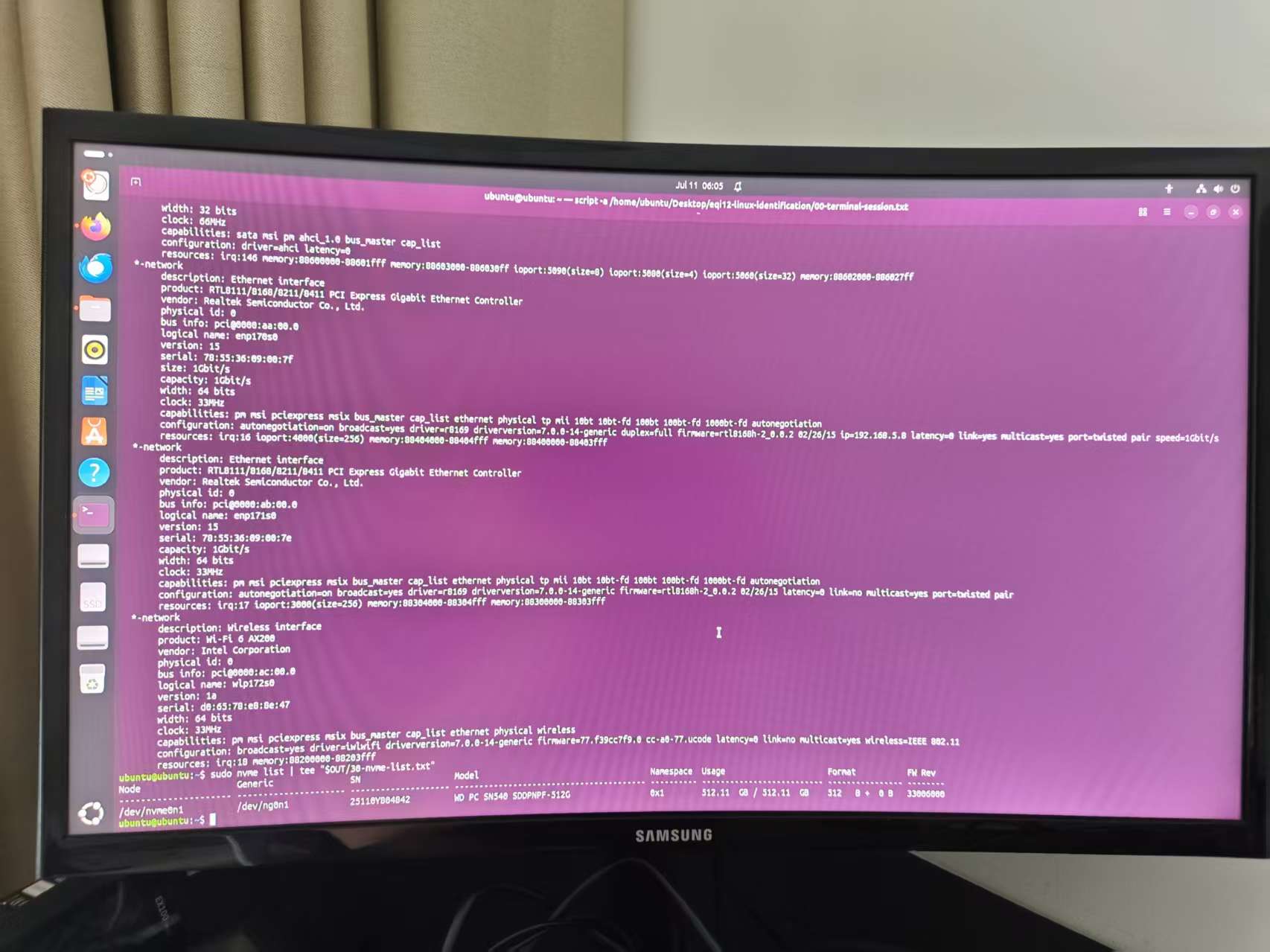
Running lspci and lsblk on the live terminal reveals exactly which components the kernel recognized. This is the most important evidence for anyone planning a Proxmox or bare-metal Linux deployment:
Storage — WD PC SN540 NVMe (512 GB)
Node    Model                          Namespace Usage   Format      Fw Rev
nvme0n1 WD PC SN540 SDQPNPF-512G       511.11 GB / 511.11 GB  FUP     33000000
The internal drive appears as /dev/nvme0n1. It uses the FUP (firmware update partition) format at firmware revision 33000000. This is the same 512 GB NVMe SSD identified under Windows in the EQi12 storage and USB benchmark.
Ethernet — Realtek RTL8111/8168/8411 Gigabit
Product:  RTL8111/8168/8411 PCI Express Gigabit Ethernet Controller
Vendor:   Realtek Semiconductor Co., Ltd.
Driver:   r8169 (version 6.8.0-62.0-generic)
Bus info: pci@0000:00:08.0
Speed:    100 Mb/s (link speed detected)
Capacity: 10 Gb/s
Width:    64 bits
Clock:    33 MHz
IRQ:      17
The r8169 driver loaded automatically. Link speed showed 100 Mb/s at test time (limited by the switch port, not the NIC capability). This matches the network performance results recorded under Windows, where the same controller delivered near-line-rate throughput.
Wi-Fi — Intel AX200
Product: Intel Corporation Wi-Fi 6 AX200
Driver:  iwlwifi
Bus info: pci@0000:00:14.3
Serial:  d4:67:81:7d:84:47
The AX200 was detected with its iwlwifi driver. MAC address is visible in the output above. Wireless works out of the box on this kernel.
Known issue — bracketed paste control characters
When pasting multi-line commands from an external editor into GNOME Terminal on the Live session, the terminal’s bracketed paste mode injects control-character sequences (\033[200~ and \033[201~) around the pasted text. If the shell interprets these as part of the command, errors occur:
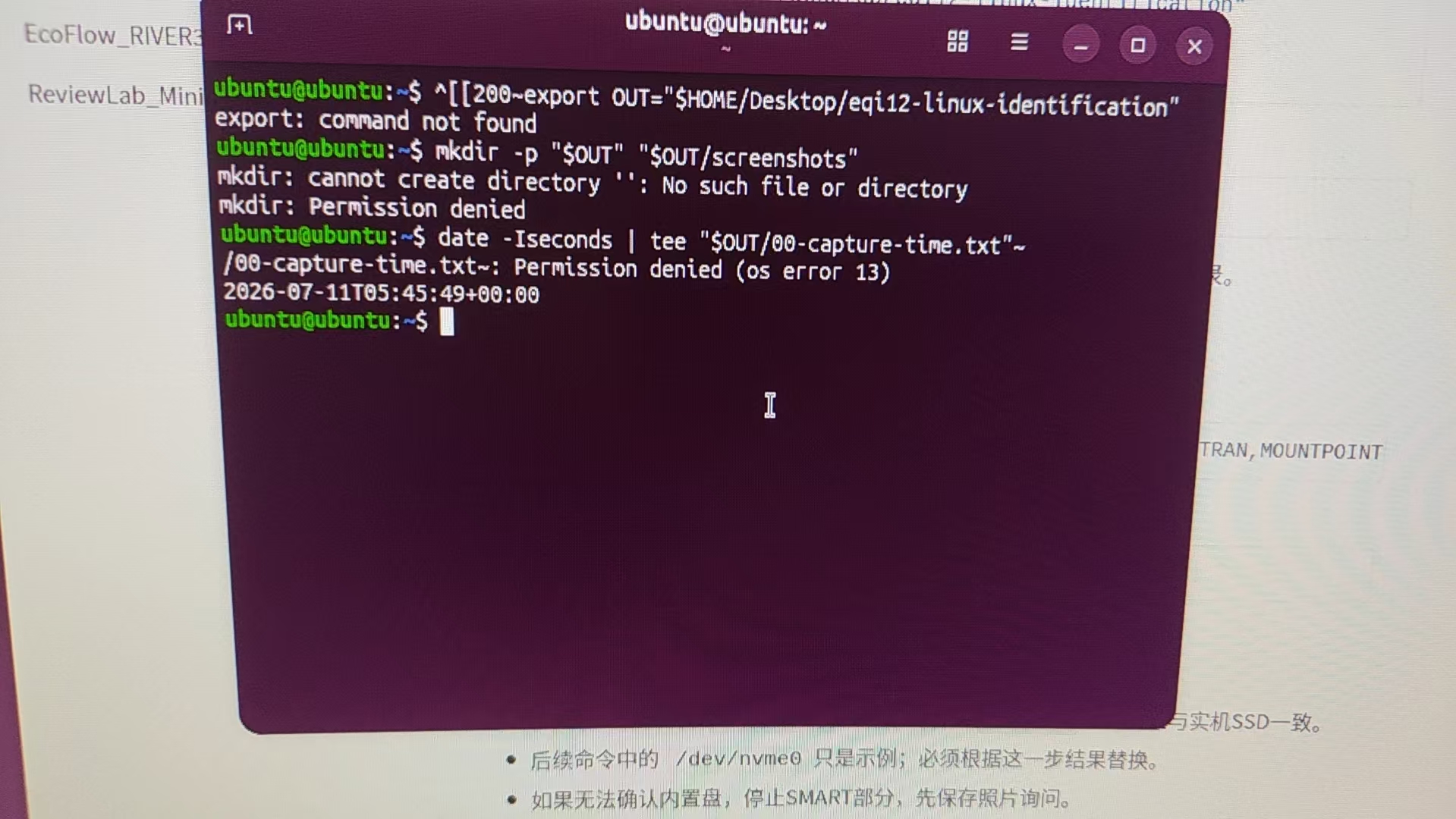
Workaround: type commands directly, or use Shift+Insert for paste (some terminals handle this more cleanly than middle-click paste). In a permanent install this is less likely to matter because the default shell profile typically disables bracketed paste mode or the terminal emulator handles stripping.
What this means for Proxmox or bare-metal Linux
Based on this Live boot evidence:
| Component | Status | Notes |
|---|---|---|
| UEFI boot from USB | Working | SCSI DISK detected, GRUB loads |
| NVMe SSD (WD SN540) | Detected | /dev/nvme0n1 visible, 512 GB |
| Wired Ethernet (Realtek) | Working | r8169 driver, auto-connected |
| Wi-Fi (Intel AX200) | Detected | iwlwifi driver loaded |
| Graphical desktop (GNOME) | Working | Live session fully functional |
All critical components for a Proxmox VE or Ubuntu Server install have kernel support in the 26.04 LTS series. The BIOS settings documented in the EQi12 BIOS configuration guide — specifically VT-x, VT-d and the SATA/AHCI mode — should remain enabled before proceeding with a full Linux install. For the full hardware picture including Windows benchmarks and real-world homelab performance, see the Beelink EQi12 review.
For users who want to keep Windows and add Linux virtualization, the Docker benchmark results show the EQi12 handles containerized workloads well under WSL2. A native Linux install would remove the WSL2 overhead and give direct access to the NVMe and network hardware.
Bottom line
The Beelink EQi12 boots Ubuntu 26.04 LTS Live via UEFI USB without issues. The Realtek Ethernet, Intel AX200 Wi-Fi and WD SN540 NVMe are all properly detected by the 6.8 kernel. Anyone planning to run Proxmox, Ubuntu Server or another Linux distribution on this mini PC can proceed with confidence that the base hardware is compatible.