
What the r8169 driver controls
The r8169 is the Linux kernel driver for the Realtek RTL8169/8111 family of gigabit Ethernet controllers. If your mini PC, NAS or small-form-factor PC has Realtek networking, this is almost certainly the driver that manages it. On Windows, the equivalent is the Realtek PCIe GbE Family Controller driver, which controls the same physical hardware through a different software path.
The RTL8111H variant is especially common in budget and mid-range mini PCs from Beelink, Minisforum, GMKtec and similar manufacturers. It is a capable gigabit controller, but it has a consistent set of failure modes that are configuration problems rather than hardware defects.
This guide covers those failure modes with tested fixes from a Beelink EQi12 that uses two RTL8111H controllers. The same methods apply to any mini PC or small server with Realtek gigabit networking.
Symptom 1: link speed stuck at 100Mbps
A gigabit controller negotiating at 100Mbps is the most common r8169 complaint. The hardware is capable of 1000Mbps, but the link settles at one-tenth the expected speed.
Check the negotiated speed
On Linux:
sudo ethtool eth0 | grep SpeedOn Windows, open PowerShell:
Get-NetAdapter | Format-Table Name, LinkSpeed, StatusOr check Device Manager, Network adapters, the Realtek controller, Advanced tab, and look for Speed & Duplex.
Work through the causes in order
| Cause | How to confirm | Fix |
|---|---|---|
| Bad or damaged cable | Try a known-good Cat5e or Cat6 cable | Replace the cable |
| 100Mbps switch port | Check the switch model and port rating | Move to a gigabit-capable port |
| Dirty or bent connector pins | Inspect the RJ45 plug and the PC jack | Clean or reseat |
| Driver negotiation issue | Force 1000Mbps and observe | See below |
| BIOS power-saving state | Update BIOS, check PCIe power settings | Update firmware |
Force gigabit speed on Linux
Only after confirming the cable and switch support gigabit:
sudo ethtool -s eth0 speed 1000 duplex full autoneg onIf the link drops immediately after forcing 1000Mbps, the physical path cannot support gigabit. Do not leave the force in place; fix the cable or switch instead.
Force gigabit speed on Windows
In Device Manager, open the Realtek adapter, Advanced tab, find Speed & Duplex, and change it from Auto Negotiation to 1.0 Gbps Full Duplex. If the link disappears, the physical path is the problem.
Measured result
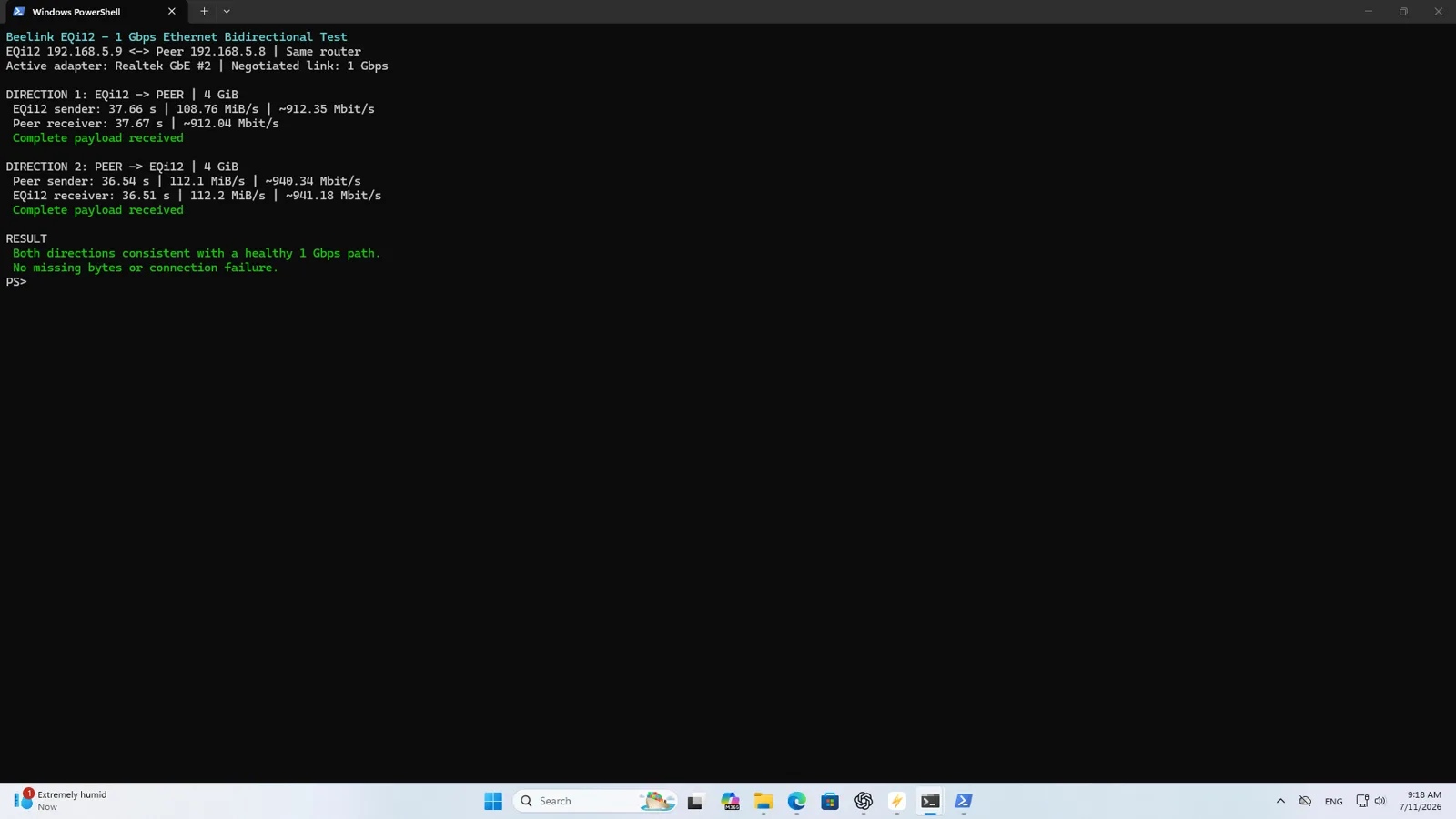
Both RTL8111H controllers on the tested EQi12 negotiated at gigabit speed immediately with the supplied cable and a gigabit switch. The measured throughput was 891-941Mbps in both directions, which is the expected range for a healthy 1GbE connection after protocol overhead.
Symptom 2: Wake-on-LAN fails
WOL is a chain that spans the BIOS, the driver, Windows power management and the physical adapter. A failure anywhere in the chain looks like a driver problem, but the r8169 itself is rarely the root cause.
The dual-port trap
Mini PCs with two Realtek controllers show two nearly identical adapter names. Windows may label one as Realtek PCIe GbE Family Controller and the other as Realtek PCIe GbE Family Controller #2. That numbering is not permanent. A driver reinstall or Windows update can swap them.
If you configure WOL on adapter A but the Ethernet cable is connected to adapter B, the magic packet goes nowhere useful.
Fix: connect one cable at a time and record which adapter shows an active link. On Linux:
sudo ethtool eth0 | grep "Link detected"On Windows:
Get-NetAdapter | Where-Object Status -eq Up | Format-Table Name, InterfaceDescription, MacAddressRecord the hardware ID and MAC address for each physical jack before configuring anything else.
Linux WOL configuration
Install ethtool if it is not present, then verify and enable WOL:
sudo ethtool eth0 | grep -i wakeEnable wake-on-magic-packet:
sudo ethtool -s eth0 wol gTo make the setting persistent across reboots, add it to a NetworkManager dispatcher script or a systemd service, because ethtool WOL settings do not survive a reboot by default.
Windows WOL configuration
Open Device Manager, the active Realtek adapter, Advanced tab:
- Enable Wake on Magic Packet
- Enable Shutdown Wake-On-Lan if available
- Leave WOL & Shutdown Link Speed at default for the first test
Under Power Management:
- Enable Allow this device to wake the computer
- Enable Only allow a magic packet to wake the computer
Then disable Windows Fast Startup: Control Panel, Power Options, Choose what the power buttons do, Change settings that are currently unavailable, clear Turn on fast startup.
Test properly
Send the magic packet from a second device on the same LAN. Do not test from the server itself. Shut down (or sleep) the target, wait for network activity to stop, send one packet, and time the response. Repeat five times. A single success proves only that one attempt worked.
For the complete tested procedure and results, see the Realtek Wake-on-LAN guide.
Symptom 3: intermittent disconnects or drops
Periodic link drops on the r8169 can have several causes. Work through them systematically rather than changing driver settings at random.
Physical layer first
- Replace the Ethernet cable with a known-good Cat5e or Cat6.
- Try a different switch port.
- Inspect the RJ45 connector for bent pins or debris.
- If the mini PC has two ports, try the other one.
Check for errors on Linux
ip -s link show eth0Look for increasing RX/TX errors, dropped packets or overruns. A small number may be normal; a growing count during idle indicates a real problem.
dmesg | grep r8169Look for link-up and link-down events, firmware load failures, or timeout messages. The r8169 driver logs state changes to the kernel ring buffer.
Check for errors on Windows
Open PowerShell:
Get-NetAdapterStatistics -Name "Realtek PCIe GbE Family Controller"Or open Event Viewer, System log, and filter for the Realtek driver source. Look for warning or error events around the time of the disconnects.
Energy-saving conflicts
Some Realtek drivers expose an Energy Efficient Ethernet (EEE) or Green Ethernet option. These can cause link renegotiation or drops on certain switches. Disable EEE in the driver Advanced tab on Windows, or on Linux:
sudo ethtool --set-eee eth0 eee offIf the disconnects stop after disabling EEE, the switch and the NIC were negotiating an energy-saving mode that neither handled cleanly.
Driver version
On Linux, check the loaded driver version:
sudo ethtool -i eth0On kernels 5.15 and newer, the in-tree r8169 is stable for the RTL8111H. If you are on an older kernel and experiencing issues, upgrading the kernel is a better path than installing the out-of-tree r8168 driver.
On Windows, download the latest Realtek driver from the mini PC manufacturer’s support page or from Realtek’s website. Do not rely on Windows Update for the newest version; it often lags behind.
Symptom 4: r8168 vs r8169 — which driver to use
The Realtek RTL8111H family has two Linux drivers:
| Driver | Type | Status |
|---|---|---|
| r8169 | In-kernel, maintained | Recommended for kernel 5.15+ |
| r8168 | Out-of-tree, Realtek-provided | Legacy fallback for older kernels |
Historically, the r8168 driver was more stable for some controllers. That gap has closed. On modern kernels, the r8169 handles the RTL8111H correctly for link negotiation, WOL and standard throughput.
When to consider r8168
- Kernel older than 5.4 with persistent r8169 link issues.
- The manufacturer specifically recommends it for your hardware.
- You have exhausted cable, switch, BIOS and configuration fixes.
How to switch
Blacklist r8169 and load r8168 instead. The exact steps depend on the distribution. On Ubuntu-based systems:
echo "blacklist r8169" | sudo tee /etc/modprobe.d/blacklist-r8169.conf
sudo update-initramfs -u
sudo reboot
If the r8168 module is not present, install it from the manufacturer’s package or build it from source. Revert the blacklist if the replacement does not improve the situation.
Dual-port mini PC identification guide
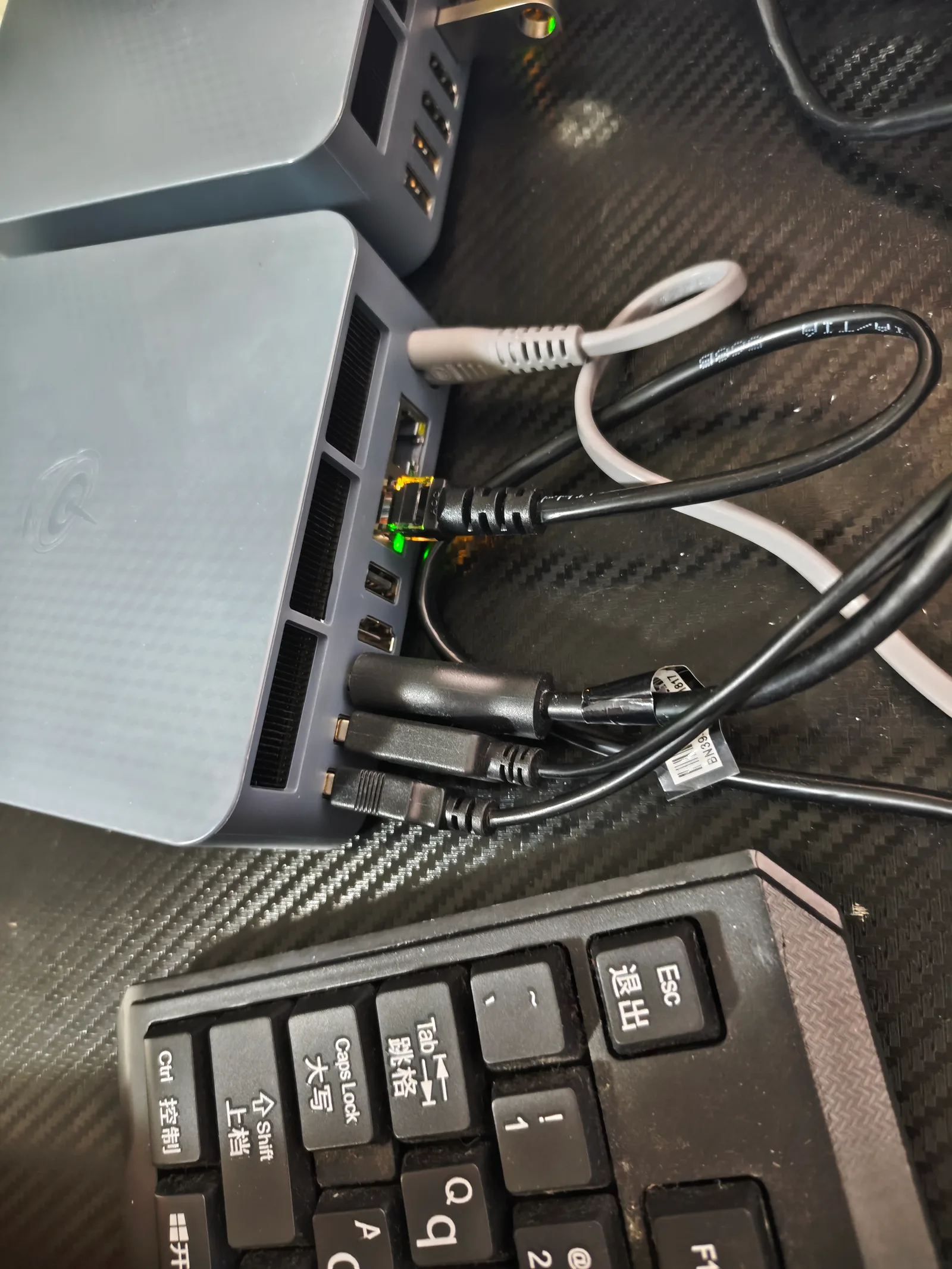
Many home-server mini PCs have two identical Realtek controllers. Here is a reliable identification method that works on both Linux and Windows.
Linux
for iface in $(ls /sys/class/net | grep -E '^en|^eth'); do
  echo "=== $iface ==="
  echo "Driver: $(sudo ethtool -i $iface 2>/dev/null | grep driver)"
  echo "MAC: $(cat /sys/class/net/$iface/address)"
  echo "Link: $(sudo ethtool $iface 2>/dev/null | grep 'Link detected')"
  echo "PCI: $(ethtool -i $iface 2>/dev/null | grep bus-info)"
  echo
done
Connect the cable to one port, note which interface shows Link detected: yes, then move it to the other port and repeat. The PCI bus-info value tells you which physical slot each interface maps to.
Windows
Get-NetAdapter | Format-Table Name, InterfaceDescription, MacAddress, Status, LinkSpeed -AutoSize
Get-NetAdapter | Get-NetAdapterHardwareInfo | Format-Table Name, BusNumber, DeviceNumber, FunctionNumber -AutoSize
Move the cable between ports and record which adapter name changes state. Label the physical jack on the mini PC case with a marker so the mapping survives driver changes.
Performance expectations
For a healthy Realtek RTL8111H gigabit connection:
| Metric | Expected range |
|---|---|
| Negotiated link speed | 1000Mbps full duplex |
| iperf3 TCP throughput | 900-940Mbps |
| SMB large-file transfer | 100-110MiB/s |
| Idle packet errors | 0 |
| WOL from S5 shutdown | Should work within 5 seconds of magic packet |
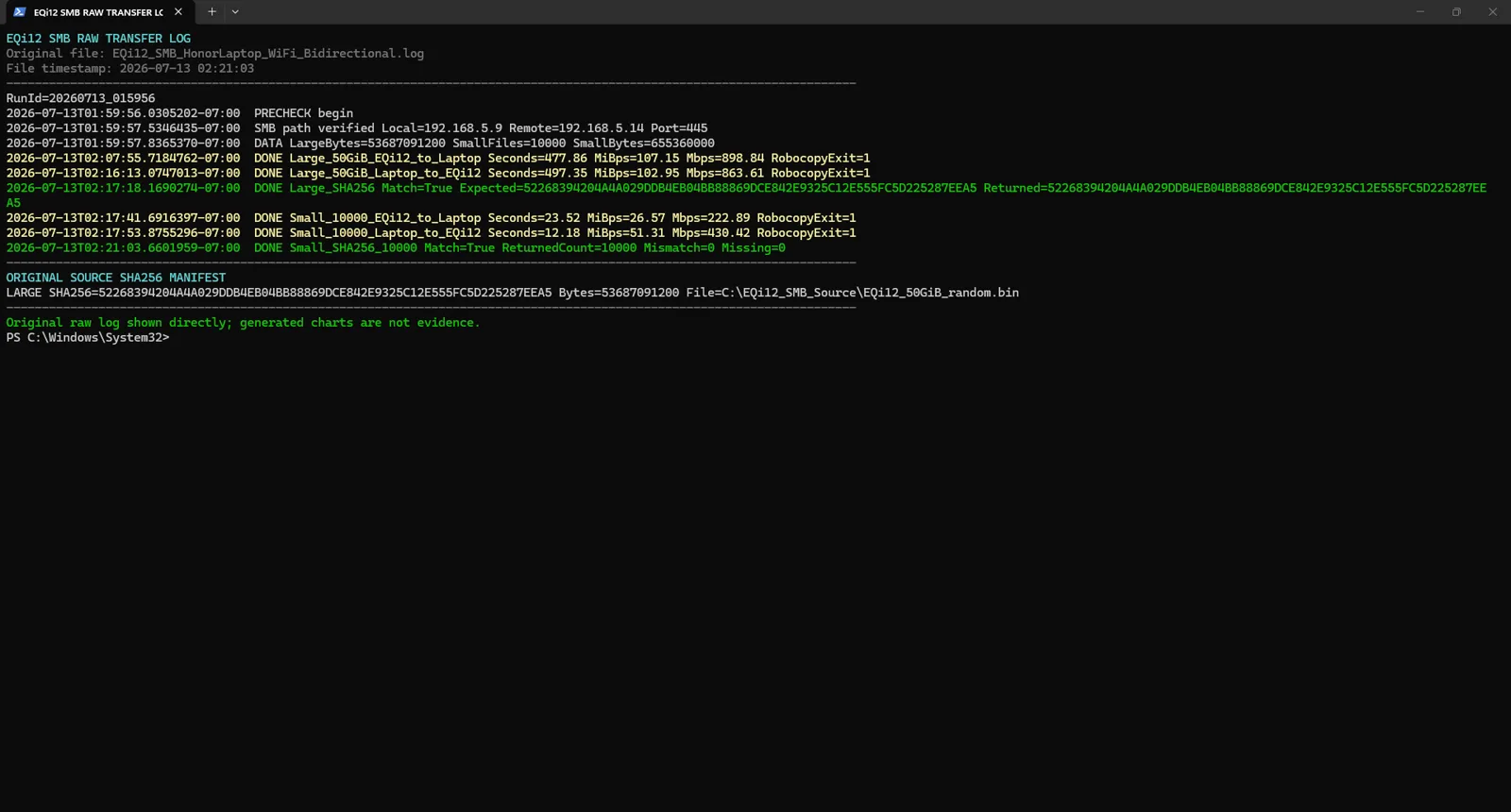
If your throughput is below 900Mbps on a local gigabit path, the bottleneck is usually storage, antivirus, SMB configuration or file size distribution, not the r8169 driver. Use the network transfer time calculator to estimate real-world transfer times at your measured rate.
Troubleshooting flowchart
- Link at 100Mbps? Replace cable, check switch port, force 1000Mbps.
- WOL fails? Map physical port, enable magic packet, disable Fast Startup, test 5 cycles.
- Intermittent drops? Check
dmesg/ Event Viewer, disable EEE, update driver. - Dual-port confusion? Use the identification method above before changing any settings.
- Still failing after all steps? Test with a different OS (Linux Live USB or Windows PE) to isolate hardware from software.
Related guides
- Wake-on-LAN setup for Realtek adapters — complete BIOS and driver configuration with five-cycle test results
- WOL works from shutdown but not sleep — state-specific troubleshooting
- Why Wake-on-LAN fails: every cause — the full diagnostic list when WOL fails for reasons outside the driver
- ACPI S5 wake sources explained — which firmware PME and RTC options actually matter per power state
- WOL troubleshooter tool — guided step-by-step wake failure diagnosis
- EQi12 network performance — measured throughput from both Realtek ports
- AC power recovery after outage — State After G3 configuration for automatic boot
- Network transfer time calculator — estimate backup and media transfer durations