
The short answer
A DDR4 SO-DIMM fits a mini PC only when four things match at once: DDR generation (260-pin DDR4, not 262-pin DDR5), JEDEC voltage (1.2 V, not a 1.35 V XMP module), module rank, and the board’s per-slot capacity limit. Fitting the slot proves none of them.
What we measured on our unit
We only publish first-hand memory figures for the machine on our bench: a Beelink EQi12 with an Intel Core i3-1215U, running BIOS EQI12D405. Its factory configuration is:
| Item | Measured value | Where it came from |
|---|---|---|
| Capacity | 16 GB total, 2 × 8 GB | CPU-Z Memory tab |
| Speed | DDR4-3200 (1600 MHz × 2) | CPU-Z SPD tab |
| Channels | Dual channel | CPU-Z Memory tab (Channel #) |
| Slots used | 2 of 2 | Task Manager → Memory |
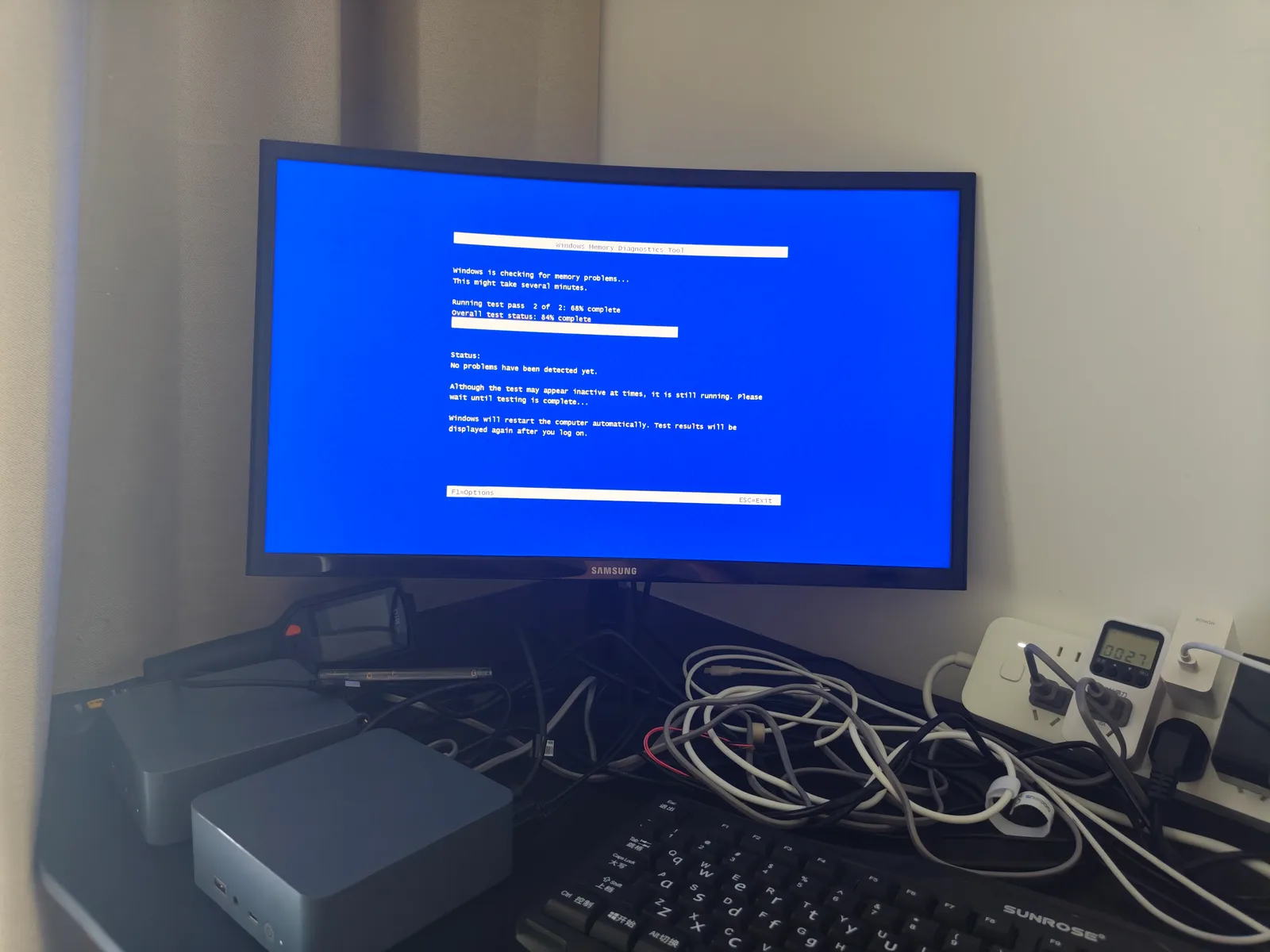
| Integrity check | Windows Memory Diagnostic completed, no error reported | Event 1101, recorded on both units |
Two identical units were checked side by side, and both reported the same configuration. That is the baseline this page measures every upgrade against: if an upgrade changes the reported speed, channel count or slot population, the change is visible in the operating system without any special tooling.
What the manufacturer documents
This is the part most “will it fit” answers skip. Beelink’s published EQi12 documentation states DDR4 3200 MHz with dual SO-DIMM slots, and gives 16 GB (8 GB × 2) as the example configuration. The maintenance section of the same documentation states that RAM can be upgraded to 64 GB and storage to 4 TB. The processor’s own limit is documented separately by Intel: the Core i3-1215U supports up to 64 GB of DDR4-3200 across two channels and does not support ECC.
So the documented ceiling is 64 GB, and the documented form factor is SODIMM DDR4-3200. Neither document tells you the rank, the voltage tolerance, or whether your specific SKU has slots at all — which is exactly where upgrades go wrong.
The four variables that actually decide it
Compatibility is not one check, it is four independent ones. This table is the whole page in compressed form:
| Variable | What must match | What happens when it does not |
|---|---|---|
| Generation / pin count | DDR4 SO-DIMM is 260-pin; DDR5 SO-DIMM is 262-pin with a differently placed key | Physically will not seat. The notch prevents it, which is the good outcome |
| Voltage and profile | Standard JEDEC 1.2 V for DDR4 | A module that only reaches its rated speed through a 1.35 V XMP profile will fall back to a slower baseline, or fail to train and produce a black screen |
| Rank | 1Rx8 and 2Rx8 both exist; the board’s memory controller may accept one and not the other | No POST, or the module is detected but only half its capacity is reported |
| Per-slot capacity | The board’s accepted maximum per slot, not the total | A single 32 GB module in a slot capped lower is either ignored or prevents boot |
Rank is the variable that surprises people most. “Rank” is not the same as “number of chips” and it is not printed on the retail box in large type — it appears in the module’s part number. Two modules with identical capacity, speed and brand can differ in rank, and the memory controller trains them differently.
Why “same speed as the old stick” is not enough
A common and reasonable-sounding upgrade plan is: “the machine came with DDR4-3200, so I will buy DDR4-3200.” That narrows the field but does not settle it. Two DDR4-3200 modules can still differ in:
- Rank — 1Rx8 versus 2Rx8.
- Voltage requirement — some performance modules are rated at 1.35 V and only reach 3200 MT/s with XMP enabled. A mini PC BIOS frequently exposes no memory voltage control at all, so the module runs below its rating or refuses to train.
- Timings — mixing a CL16 module with a CL22 module makes the controller train for the slower set, and may fail entirely.
The manufacturer’s Qualified Vendor List is the only authoritative answer for a given board, and consumer mini PCs usually do not publish one. That absence is the reason this page leans on a repeatable method rather than a list of “known good” part numbers we could not verify on your hardware.
Owner reports: the failures that actually show up
The table below reflects how these failures are described across the third-party guides and support knowledge-bases listed at the end of this page. It is a summary of what those sources report, not a claim of a measured sample size.
| Reported symptom | Cause those reports most often land on | Practical first move |
|---|---|---|
| Black screen, no POST after installing new memory | Module not fully seated, or incompatible rank / count | Reseat, then test one module at a time in the primary slot |
| System boots but reports only half the installed capacity | One module not detected, or a defective or incompatible single module | Test each module separately; a module that fails alone fails for a reason |
| Boots, but at a lower speed than the module is rated for | XMP-only module running at JEDEC default because the BIOS exposes no XMP controls | Accept the default speed; on this class of hardware frequency is not the bottleneck |
| Unstable system, blue screens under load | Two modules with mismatched capacity, rank or timings | Replace with a matched kit, or run the matched pair and park the odd module |
| Upgrade attempt does nothing at all despite correct-looking modules | That SKU has soldered memory and no slots | Verify the SKU before buying — see below |
One point from those reports deserves its own line: some EQi12 SKUs ship with memory soldered to the board. Variants built around the i3-1220P are documented with 24 GB of soldered LPDDR5 and no upgrade path. The same model name can therefore be fully upgradeable or not at all, depending on the processor variant. Opening the machine and looking at the board is faster than reading any listing.
Decision tree: will this module work?
The diagram below is the order to run the checks in, because each step is cheaper than the next.
Verification: the three numbers that matter
After the upgrade, three numbers tell you whether it worked. Nothing else matters.
Windows
- Task Manager → Performance → Memory — check total capacity, “Slots used”, and confirm Speed reads the expected MT/s.
- CPU-Z → Memory tab — the
Channel #field must readDual. If it readsSinglewith two modules installed, one is not being used. - CPU-Z → SPD tab — read the part number and the module-level detail for each slot separately.
Linux
# Total, per-DIMM size, speed and manufacturer
sudo dmidecode -t memory | grep -E "Size|Speed|Manufacturer|Part Number"

# Quick capacity and channel count from the kernel's view
sudo lshw -class memory | head -30
free -h
The command that settles a dispute is dmidecode -t memory: it reports each slot individually, so “one of my two sticks is invisible” stops being a guess.
What is genuinely not fixable
Three limits are hardware, not configuration, and no amount of reseating changes them:
- Soldered memory. If the SKU has it, there is no upgrade. This is the one to check before ordering anything.
- A single-channel platform. Intel N-series mini PCs are single channel regardless of how many slots the board has. Adding a second module does not create dual-channel bandwidth on a platform that cannot provide it.
- A per-slot cap below the module size. Where a board accepts 16 GB per slot but not 32 GB, the larger module does not degrade gracefully — it typically prevents POST.
If your case is one of these, the honest answer is a different machine or a different capacity target, not more modules.
Where to go next
- Windows Memory Diagnostic on a home server — how to read the real pass/fail verdict from event 1101 instead of guessing from the reboot.
- Beelink EQi12 review — the full measured configuration this page references, including storage and network.
- EQi12 12.57-hour stability test — the long run that followed the memory checks, with 150 samples and zero container failures.
- Beelink EQi12 BIOS settings for a home server — what the firmware does and does not expose, including the memory-related options.
Sources
This page separates three kinds of claim. Measured figures come from our own bench unit. Documented figures come from the manufacturer or the silicon vendor. Reported figures come from third parties and are labelled as such.
Measured on our unit
- Beelink EQi12 (i3-1215U), 16 GB DDR4-3200 in dual channel, BIOS EQI12D405 — CPU-Z Memory and SPD captures, plus Windows Memory Diagnostic event 1101, recorded on two identical units. Raw captures:
/hardware/beelink-eqi12-review/.
Manufacturer and vendor documentation
- Beelink EQi12 series documentation (DDR4 3200 MHz, dual SO-DIMM slots, 16 GB (8 GB × 2) example, RAM upgradeable to 64 GB, storage to 4 TB) — Beelink EQi12 user manual as published for the series.
- Intel Core i3-1215U product specification (max memory 64 GB, DDR4-3200, 2 channels, ECC not supported, TjMax 100 °C) — Intel ARK.
Third-party guides and support knowledge-bases (reported, not measured here)
- Budget Homelab — “Mini PC RAM Upgrades for a Homelab: What to Buy and What Actually Fits” (per-class slot and capacity matrix; notes that vendors revise these silently mid-production run).
- Mini PC Reviewer — “Can You Upgrade RAM in a Mini PC?” (SO-DIMM slot identification, 1Rx8 pairing guidance).
- Mini PC Review — “How to Install More RAM in Your Mini PC” (post-install verification via Task Manager and CPU-Z; common-mistake table).
- Patriot Memory support knowledge-base — SODIMM boot-failure procedure (reseat, test one module at a time, clear CMOS, verify QVL, update firmware).
- SilverPC — “PC Won’t Post? RAM Not Detected in BIOS” (QVL, JEDEC-versus-XMP failure path, known-good module substitution).
- Best SSD Finder — SO-DIMM buyer’s checklist (260-pin versus 262-pin, JEDEC 1.2 V versus XMP-only modules, matched-kit advice).
- Beelink EQi12 product variant listings (i3-1220P variants documented with 24 GB soldered LPDDR5 and no upgrade path) — the reason the “soldered memory” check exists in this page.
All memory figures quoted as measured come from our bench record. Any claim about a different mini PC model is attributed to the third-party source that reported it.