
Why Docker Compose for a home server
Docker Compose lets you define an entire server stack — web server, database, cache, media server — in a single YAML file. One command starts everything. One command tears it down. Every service runs in isolation with explicit networking, volumes and restart policies.
For a home server, this means:
- Reproducibility — your stack is a file, not a list of manual steps you have to remember.
- Isolation — PostgreSQL cannot accidentally break your Nginx configuration.
- Easy updates — change an image tag, run
docker compose pull && docker compose up -d, done. - Portability — the same
compose.yamlworks on your mini PC, a NAS, or a cloud VM.
This tutorial walks through building a starter stack with Nginx, PostgreSQL and Redis on a Windows mini PC (Beelink EQi12 with Docker Desktop and WSL2). The same file works on Linux with minor path adjustments.
What you will have when finished: a running three-service Docker Compose stack with health checks, persistent data volumes, no exposed database ports, and a verified restart policy.
Prerequisites
- Docker installed and running — on Windows, install Docker Desktop with the WSL2 backend. On Linux, install Docker Engine and the Compose plugin.
- A terminal — PowerShell on Windows, or any shell on Linux.
- About 15 minutes.
If Docker Desktop is not yet installed, the Windows home-server build guide covers WSL2 and Docker Desktop setup from scratch.
Step 1: generate your Compose file
Use the Docker Compose Starter Generator to create a conservative starting configuration. Select the services you want, set your project name and timezone, then copy the generated YAML.
The generator produces a file with:
- Named volumes for PostgreSQL and Redis data.
restart: unless-stoppedfor all services.- Health checks for each service.
- Explicit major-version image tags (e.g.,
postgres:17-alpine) instead oflatest. - No database ports exposed to the host — services communicate over the internal Docker network only.
Why no exposed database ports: publishing PostgreSQL or Redis to the LAN means any device on your network can attempt connections. Keep them internal and access them through other containers or a controlled tunnel.
Save the output as compose.yaml in a project directory:
C:\Users\YourName\homelab\
├── compose.yaml
└── .env
Step 2: create the environment file
The generated Compose file references ${POSTGRES_PASSWORD} for the database password. This value must come from a .env file in the same directory — never hardcode passwords in the YAML.
Create .env:
POSTGRES_PASSWORD=replace-with-a-long-random-secretGenerate a strong password using a password manager or a command like:
# PowerShell
-join ((48..57) + (65..90) + (97..122) | Get-Random -Count 32 | ForEach-Object {[char]$_})
On Linux:
openssl rand -base64 32Important: add
.envto your.gitignoreif you version-control this directory. Never commit secrets.
Step 3: review the generated configuration
Before starting the stack, understand what each section does.
Services
Each service block defines one container:
services:
  nginx:
    image: nginx:1.27-alpine
    restart: unless-stopped
    ports:
      - "8080:80"
    environment:
      TZ: Asia/Shanghai
    healthcheck:
      test: ["CMD", "wget", "-q", "--spider", "http://127.0.0.1/"]
      interval: 30s
      timeout: 5s
retries: 3| Field | Purpose |
|---|---|
image | Which container image to pull. Alpine variants are smaller. |
restart | When to restart. unless-stopped keeps it running after Docker or host reboots. |
ports | Host-to-container port mapping. "8080:80" maps host port 8080 to Nginx port 80. |
environment | Variables passed into the container. TZ sets the timezone for log timestamps. |
healthcheck | Periodic check Docker runs to determine if the service is healthy. |
Volumes
volumes:
  postgres-data:
  redis-data:
Named volumes persist data across container restarts and recreations. Without them, every docker compose down would delete your database.
What the generator deliberately does not include
- No
latesttags — pinning major versions prevents surprise breaking changes. - No exposed database ports — PostgreSQL and Redis are accessible only to other containers in the same Compose network.
- No embedded secrets — the password comes from
.env, not the YAML.
Step 4: validate and start the stack
Open a terminal in the project directory and validate the configuration:
docker compose configThis command checks syntax, resolves variables from .env, and prints the final configuration. If there are errors, fix them before proceeding.
Start the stack:
docker compose up -dThe -d flag runs containers in the background. Docker pulls the required images on the first run.

Step 5: verify all services are healthy
Check container status:
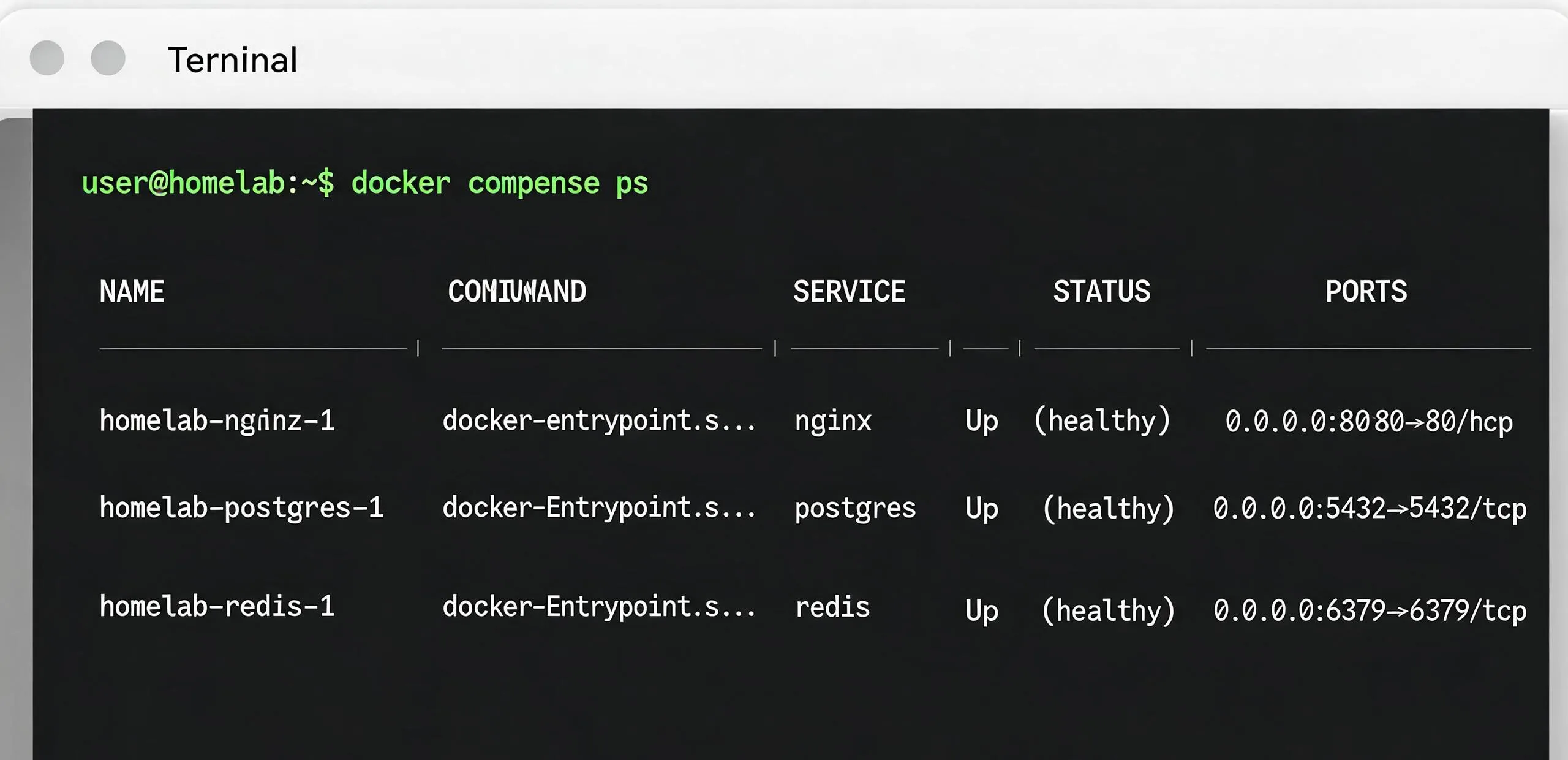
docker compose psExpected output:
NAME          IMAGE                  STATUS                   PORTS
homelab-nginx-1     nginx:1.27-alpine      Up (healthy)      0.0.0.0:8080->80/tcp
homelab-postgres-1  postgres:17-alpine     Up (healthy)      5432/tcp
homelab-redis-1     redis:7-alpine         Up (healthy)      6379/tcp
All three should show (healthy) after the health check interval passes. If a service shows (unhealthy) or keeps restarting, check its logs:
docker compose logs postgresTest each service
Nginx — open http://localhost:8080 in a browser. You should see the default Nginx welcome page.

PostgreSQL — connect from the host:
docker compose exec postgres psql -U app -d app -c "SELECT version();"This should return the PostgreSQL version string.
Redis — connect from the host:
docker compose exec redis redis-cli pingExpected response: PONG.
Write a test key and verify persistence:
docker compose exec redis redis-cli SET test-key "hello-homelab"
docker compose exec redis redis-cli GET test-key
Step 6: add your own services
Once the starter stack is running, extend it with services you actually need.
Example: add a web application
  app:
    image: your-app:1.0
    restart: unless-stopped
    environment:
      DATABASE_URL: postgres://app:${POSTGRES_PASSWORD}@postgres:5432/app
      REDIS_URL: redis://redis:6379
    depends_on:
      postgres:
        condition: service_healthy
      redis:
        condition: service_healthy
The depends_on with condition: service_healthy ensures the database and cache are ready before the application starts. The service names postgres and redis are DNS-resolvable within the Compose network.
Example: add Jellyfin
  jellyfin:
    image: jellyfin/jellyfin:10
    restart: unless-stopped
    ports:
      - "8096:8096"
    volumes:
      - jellyfin-config:/config
      - jellyfin-cache:/cache
      - /path/to/media:/media:ro
    environment:
      TZ: Asia/Shanghai
For the complete Jellyfin setup including Intel QSV hardware transcoding, see the Jellyfin Windows setup guide.
Example: add Home Assistant
  homeassistant:
    image: ghcr.io/home-assistant/home-assistant:stable
    restart: unless-stopped
    ports:
      - "8123:8123"
    volumes:
      - hass-config:/config
    environment:
      TZ: Asia/Shanghai
    privileged: true
Step 7: manage the stack day to day
Stop everything
docker compose downThis stops and removes all containers. Named volumes are preserved — your data survives.
Stop and delete data
docker compose down -vThe -v flag removes named volumes. Use this only when you want a clean slate.
Update images
docker compose pull
docker compose up -d
Docker pulls the latest image for each pinned tag, then recreates containers that have changed. Existing containers with unchanged images are not restarted.
View logs
# All services
docker compose logs -f

# One service
docker compose logs -f postgres

# Last 50 lines
docker compose logs --tail=50 nginx
Check resource usage
docker statsThis shows real-time CPU, memory and network usage per container. On the EQi12, the three-service starter stack (Nginx + PostgreSQL + Redis) used less than 200MB of RAM at idle.
Step 8: make the stack survive reboots
On Windows with Docker Desktop, the startup chain is:
- Windows boots.
- Docker Desktop starts (if configured to auto-start).
- WSL2 backend initializes.
- Docker Engine becomes available.
- Compose containers start based on their restart policy.
For this to work unattended:
- Enable Docker Desktop auto-start in settings.
- Use
restart: unless-stoppedfor all long-running services. - Disable Windows Fast Startup to avoid hybrid shutdown states.
The Docker Desktop auto-start guide covers the complete startup chain with a three-cycle verification method.
On Linux with Docker Engine as a systemd service, containers with restart: unless-stopped recover automatically after a reboot — no additional configuration needed.
Step 9: backup your data
Docker volumes are not automatically backed up. Create a backup routine:
How much backup storage do you need? Use the RAID & ZFS capacity calculator to size your backup pool, and the network transfer time calculator to estimate how long a full backup takes over your LAN.
PostgreSQL backup
docker compose exec postgres pg_dump -U app app > backup-$(date +%Y%m%d).sqlRedis backup
docker compose exec redis redis-cli BGSAVE
docker cp $(docker compose ps -q redis):/data/dump.rdb ./redis-backup.rdb
Restore test
A backup you have never restored is only an assumption. Periodically test restoration, and use a unique marker string each time so an old backup cannot pass a new test. Our Docker Compose backup and restore drill runs the full verification with measured recovery times.
# Create a temporary database
docker compose exec postgres psql -U app -d temp_restore < backup-20260721.sql

# Verify data
docker compose exec postgres psql -U app -d temp_restore -c "SELECT count(*) FROM your_table;"

# Clean up
docker compose exec postgres psql -U app -c "DROP DATABASE temp_restore;"
The Windows home-server build guide includes a complete backup and restore verification workflow.
Common problems
“port is already allocated”
Another process or container is using the host port. Change the mapping in compose.yaml:
ports:
  - "8081:80"  # Changed from 8080 to 8081
Or find and stop the conflicting container:
docker ps --format "table {{.Names}}\t{{.Ports}}" | findstr 8080“network already exists”
A previous Compose project left a network behind. Remove it:
docker network ls
docker network rm <network-name>
Container keeps restarting
Check the logs for the crash reason:
docker compose logs --tail=100 postgresCommon causes: missing environment variables, incorrect volume paths, or a service that cannot connect to its dependency. The depends_on condition helps, but the application itself must also handle connection retries gracefully.
“permission denied” on Linux
Docker commands require the user to be in the docker group:
sudo usermod -aG docker $USER
# Log out and back in, or:
newgrp docker
Security considerations
- Never run containers as root in production if the application supports a non-root user. Many official images (Nginx, PostgreSQL) already drop root internally.
- Do not expose database ports to the LAN unless absolutely necessary. Use
docker compose execfor administration. - Keep
.envout of version control and out of screenshots. - Update images regularly — security patches are published through new image tags.
- Review firewall rules — Docker manipulates iptables on Linux. Verify that your host firewall does what you expect after starting containers.
- Use specific image tags —
postgres:17-alpineis more predictable thanpostgres:latest.
What to do next
- Docker Desktop auto-start guide — make the stack survive Windows reboots automatically.
- Jellyfin Windows setup guide — add a media server to the stack with Intel QSV hardware transcoding.
- Windows home-server build — complete BIOS, Docker, Wake-on-LAN and power-loss recovery workflow.
- Docker benchmark results — measured Nginx, PostgreSQL and Redis performance on the EQi12.
- Docker Compose Generator — generate your own starter configuration.
Bottom line
Docker Compose turns a home server setup from a list of manual installation steps into a single file. Generate a starter configuration with the Docker Compose Generator, add a .env file with a strong password, validate with docker compose config, and start with docker compose up -d. The same workflow scales from three services to thirty — and the file itself documents what is running, how it connects, and where the data lives.